Analyze
CountObjects
 CountObjects : Counts objects by name, layer, and material.
- Run CountObjects.
- Set options.
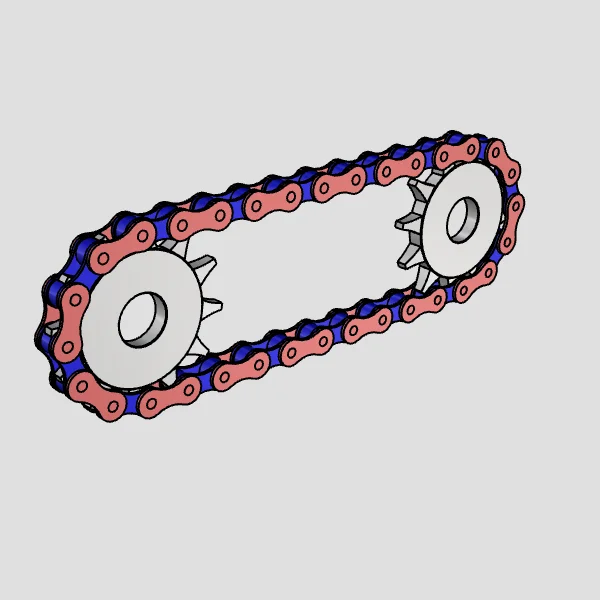
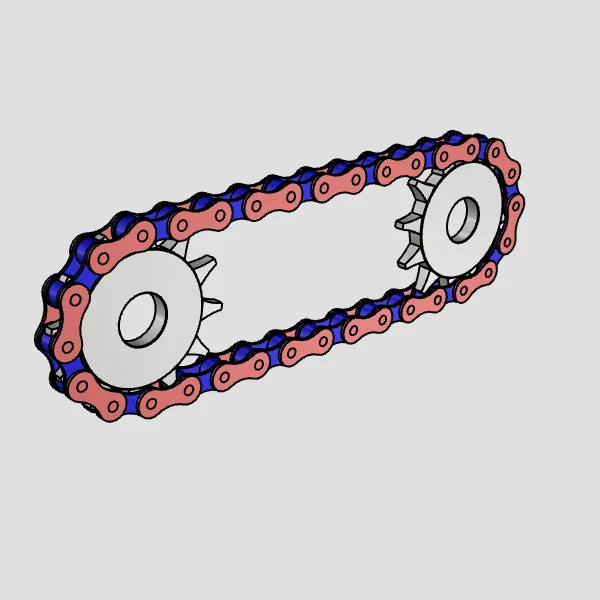
- Select target objects.
- DrawTable
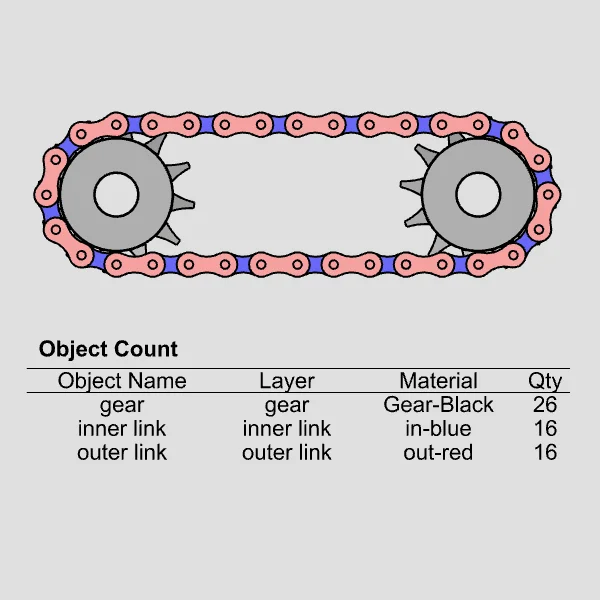
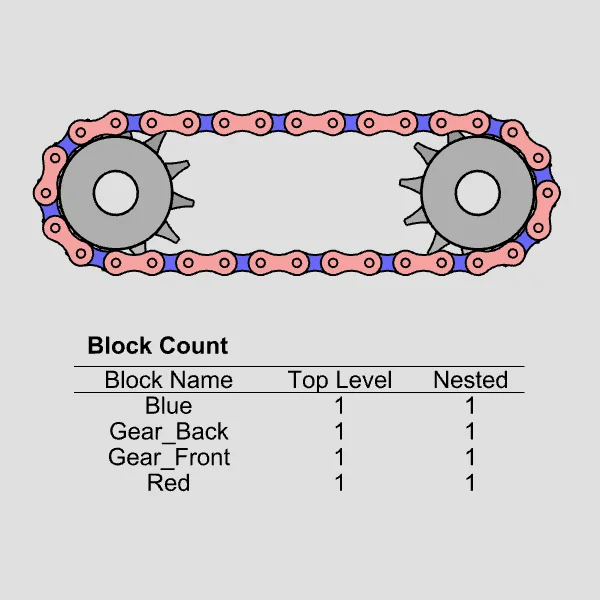
-
- GridView
Option
- OutputType
Selects the type of quantity information to display - DrawTable
Displays as a table in the viewport- Font
Changes font - FontSize
Changes font size - LineSpace
Changes line thickness
- Font
- GridView
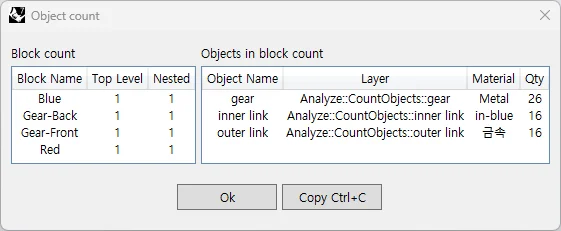
Displays in a spreadsheet-like window, ready for copying, saving, or printing
- Displays layer name, object name, material, and settings in the table.
- GridView output can be copied and pasted into spreadsheets like Excel.
DistanceBetween2Faces
 DistanceBetween2Faces : Displays the distance between two faces.
- Run DistanceBetween2Faces
- Select the two surfaces to measure the distance between, in order.
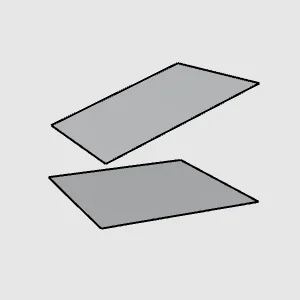
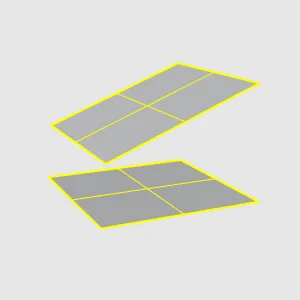
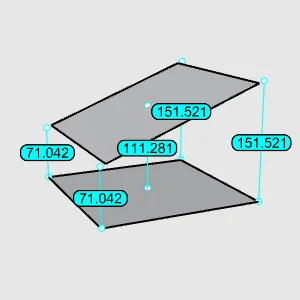
- Can calculate the distance between planar surfaces.
- Convenient for calculating data like floor height.
 DistancePt2Objs – Measures the distance from a base point to a surface.
DistancePt2Objs
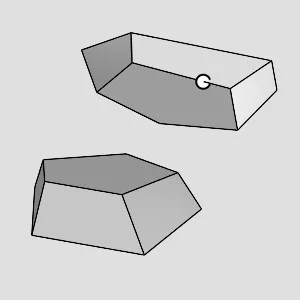
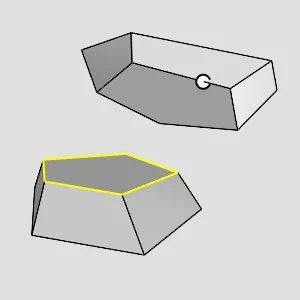
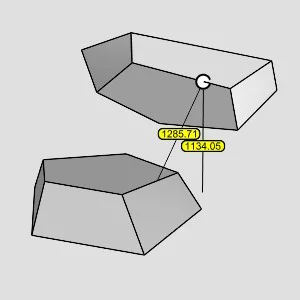
 DistancePt2Objs : Measures the distance from a base point to a surface.
- Run DistancePt2Objs.
- Select the first reference point to measure from.
- Apply options.
- Select the surface to measure the distance to.
Option
- Type
- Dot
Displays distance at a Dot
- Dot
- DistanceTo
- Object
Displays based on the selected surface - Plane
Displays the perpendicular distance from the first reference point
- Object
- nDigits
- Decimal places for numerical values
ex) nDigits = 1 / 0.1
ex) nDigits = 2 / 0.01
- Decimal places for numerical values
 DistanceBetween2Faces – Displays the distance between two faces.
VolumeOverlapped
 VolumeOverlapped : Calculates the approximate volume of overlapping parts without Boolean union.
- Run VolumeOverlapped.
- Select the overlapping objects.
- Set the check interval.
- Select Yes in the command prompt.
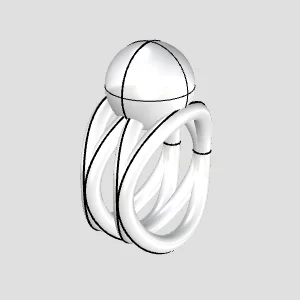

- Calculates volume based on the cross-sectional area of objects.
- Setting a smaller check interval calculates a more accurate approximate volume.
- Brep, Mesh, and SubD objects can be used in the calculation.
 WeightSolid – Calculates the weight of a solid object. Specific gravity (density) can be pre-set by material.
 WeightOverlapped – Calculates the approximate weight of overlapping parts without Boolean union.
 WeightDensity – Edits and saves material density settings.
 SetDensity - Used to add material, density, and weight information to the table content within the Callouts command.
WeightSolid
 WeightSolid : Calculates the weight of a solid object. Specific gravity (density) can be pre-set by material.
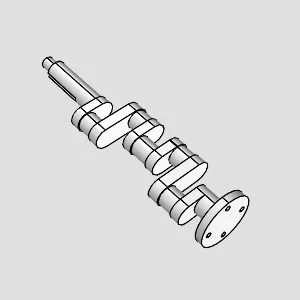
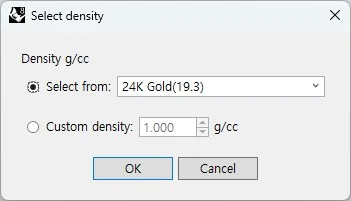
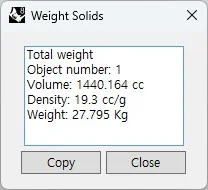
- Displays weight values based on materials set as default in WeightDensity or newly added materials.
- It can be used with SubD objects.
 VolumeOverlapped – Calculates the approximate volume of overlapping parts without Boolean union.
 WeightDensity – Edits and saves material density settings.
 SetDensity - Used to add material, density, and weight information to the table content within the Callouts command.
 WeightOverlapped – Calculates the approximate weight of overlapping parts without Boolean union.
WeightOverlapped
 WeightOverlapped : Calculates the approximate weight of overlapping parts without Boolean union.
- Run WeightOverlapped.
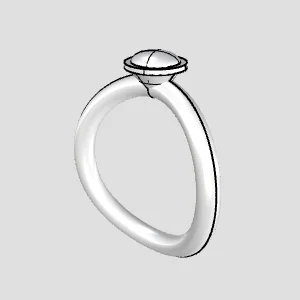
- Select the target objects.
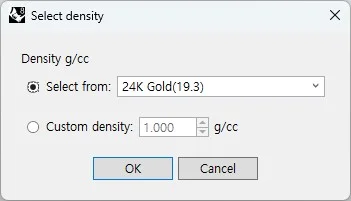
- Set density.
- Enter the check interval.
- Confirm in the command prompt.
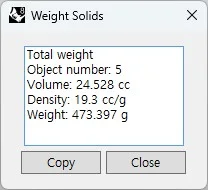
- Used when you need the sum of weight values for multiple objects.
- Setting a smaller check interval yields more accurate values.
- Displays weight values based on materials set as default in WeightDensity or newly added materials.
- It can be used with SubD objects.
 VolumeOverlapped – Calculates the approximate volume of overlapping parts without Boolean union.
 WeightSolid – Calculates the weight of a solid object. Specific gravity(density) can be pre-set by material.
 WeightDensity – Edits and saves material density settings.
 SetDensity - Used to add material, density, and weight information to the table content within the Callouts command.
WeightDensity
 WeightDensity : Edits and saves material density settings.
Step
- Run WeightDensity.
- Add materials and set density values.
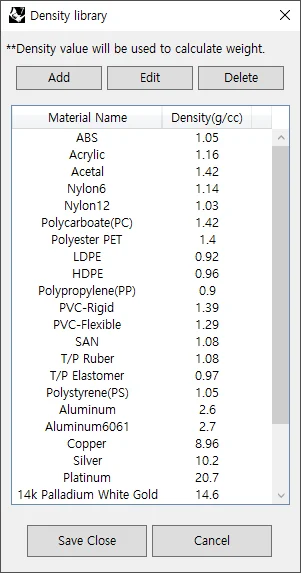
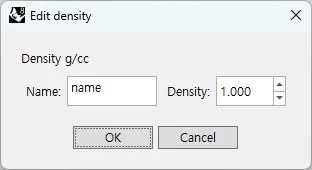
- Creating and managing a material (density) library allows these to be used when selecting density in WeigntSolid and WeightOverlapped.
- Allows searching, organizing, and simultaneously deleting/editing multiple material densities.
 VolumeOverlapped – Calculates the approximate volume of overlapping parts without Boolean union.
 WeightSolid – Calculates the weight of a solid object. Specific gravity (density) can be pre-set by material.
 WeightOverlapped – Calculates the approximate weight of overlapping parts without Boolean union.
 SetDensity - Used to add material, density, and weight information to the table content within the Callouts command.
SetDensity
 SetDensity : Used to add material, density, and weight information to the table content within the Callouts command.
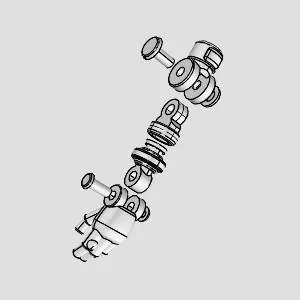
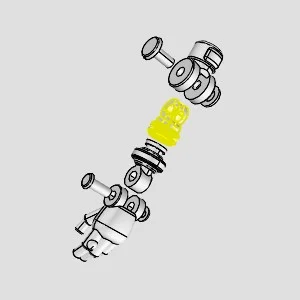
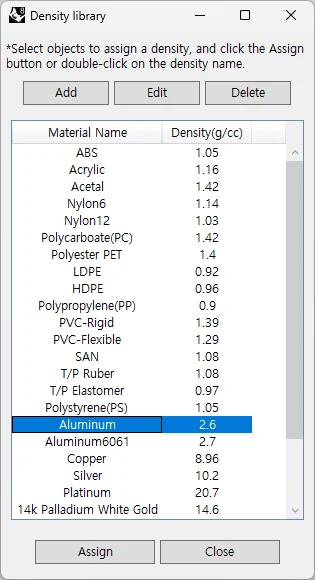
 AddCallouts – Creates numbers on objects and changes their style.
 WeightDensity – Edits and saves material density settings.
BalanceSim
 BalanceSim : An all-in-one physics simulation tool that analyzes overturning and structural collapse of solid models under external loads.
- Run BalanceSim
- Select the solid objects in the viewport to analyze for balance, then press Enter.
- Tip: You can also press Enter immediately without selecting objects to open an empty window, then register objects later using the Add button inside the window.
- The center of mass, gravity line, ground support polygon, and labels will be displayed immediately in the viewport.
- Check stability while adjusting options or applied loads. If necessary, click Simulate to observe the tipping process or the final resting posture.
- Click the Reset button to restore objects to their original positions
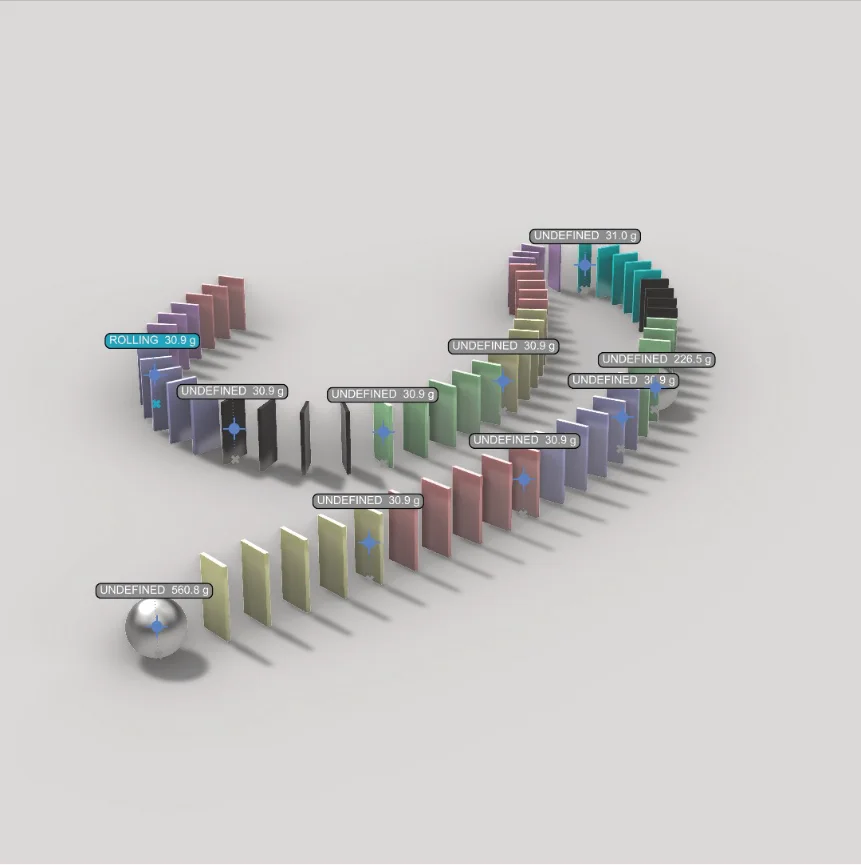
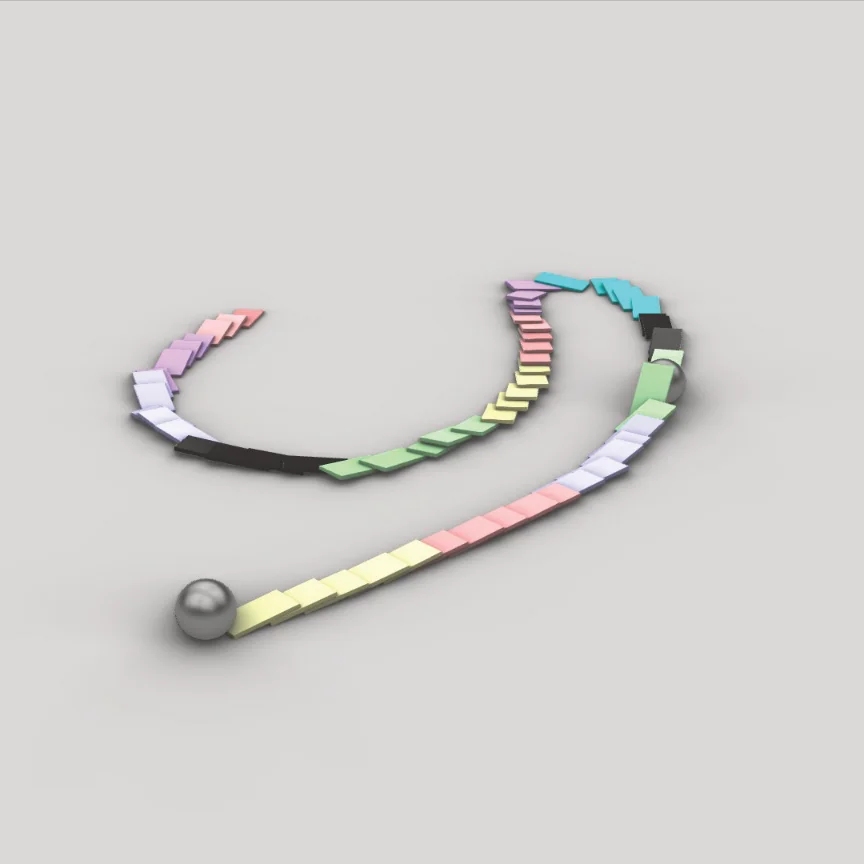
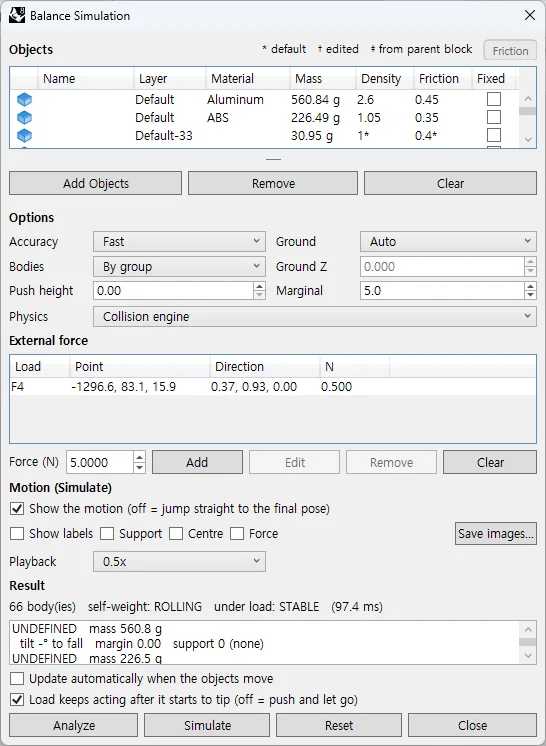
Option
- Objects
- Name / Layer: Object name and assigned layer.
- Material: Object material.
- Mass: Calculated mass of the object (Unit: g).
- Density: Material density (Unit: g/cc). If unspecified, a default value (1.0 g/cc) is applied.
- Friction: Static friction coefficient (). Can be temporarily modified by double-clicking in the table.
- Fixed: Designates non-moving supports such as stairs, floor plates, shelves, or walls.
- Material, Mass, and Density can be temporarily modified by double-clicking inside the table. (Density and friction values modified directly in the grid are maintained only for the current session window and do not alter the original Rhino 3DM model document.)
- Density and friction can be adjusted using the SetDensity command or via Attribute User Text.
- Right-Click Menu: Selecting multiple objects and right-clicking allows you to adjust density, friction, and fixed status all at once.
- Add Objects/Remove/Clear: Adds analysis targets from the viewport or excludes them from the list. Clear deletes all objects at once.
- Options
- Accuracy:
- Exact: Calculates directly from solid geometry. Calculation time may take longer in complex environments.
- Fast: Calculates based on render meshes. Extremely fast with a volume error level of approximately 0.1%, making it advantageous for large-scale models or real-time manipulation.
- Ground:
- Auto: Automatically recognizes the horizontal plane passing through the lowest point of the selected objects as the ground.
- World: Based on Rhino's World XY plane (Z=0).
- CPlane: Uses the Construction Plane (CPlane) of the current active viewport as the floor ground.
- Ground Z: Specifies the ground plane height offset when in World XY or CPlane mode.
- Bodies:
- All as one: Treats all selected objects as a single welded rigid body to calculate a combined center of mass and support area.
- By Group: Splits objects into separate rigid bodies according to Rhino groups.
- By proximity: Groups touching or closely adjacent objects into a single rigid body.
- Per object: Separates all objects into individual rigid bodies.
- Marginal: If the minimum tipping angle is smaller than this angle (default 5.0°), a warning is displayed as 'Marginal' instead of 'Stable'.
- Push Height: The height at which a hypothetical horizontal tipping force is applied in reports. If set to 0, the center of mass height is used.
- Physics: The method applied during simulation.
- Automatic: Automatically selects the collision engine if mutual collision between rigid bodies is possible, or tipping integration if it is a single rigid body.
- Tipping integration: Dynamic integration. Rigorously analyzes inertia, angular acceleration, and energy loss upon ground impact when a single rigid body tips around an axis.
- Settle (no inertia): Quasi-static model. Finds the natural initial landing posture contacting the floor via gravity and external forces without inertia or bouncing.
- Collision Engine: Multi-body physics engine. Simulates complex physical behavior where rigid bodies collide with each other and undergo chain collapses like dominoes.
- Accuracy:
- External Force
- Analyzes stability when pushing or pulling forces are applied to objects.
- External Force Grid: Displays load, application point coordinates, direction vector, and force magnitude (N), supporting inline editing.
- Force (N): Input the magnitude of the load to add. (e.g., 9.81 N)
- Add / Remove / Clear: Adds targets from the viewport or excludes them from the list.
- Edit: Modifies external force information (point of application, direction, magnitude, etc.).
- Motion(Simulate)
- Show animation: When checked, plays the simulation process as a frame-by-frame animation. When unchecked, moves directly to the final resting posture.
- Show labels: Shows or hides status text (STABLE/UNSTABLE, etc.) in the viewport.
- Support: Displays floor contact points, convex support polygon (green/red border), and critical tipping axes.
- Centre: Displays the center of mass point and vertical gravity line toward the ground.
- Force: Displays force arrows and axes where tipping occurs due to applied loads.
- Playback: Select playback speed from 0.1x to 2.0x.
- Save images: Exports the entire simulation sequence as numbered viewport images (PNG/JPEG), supporting transparent background PNGs.
- Execution & Control Buttons
- Analyze: Recalculates stability based on the current viewport state.
- Simulate: Runs the simulation with the selected physics engine to move objects. (The button changes to [Stop] during animation playback; stopping via click or Esc key moves to the last frame posture).
- Reset: Accurately restores objects and force application points that moved or fell during simulation to their original pre-simulation posture.
- Close: Exits BalanceSim.
- Evaluation Criteria (Result)
- The meanings of the statuses displayed in the dialog summary and viewport labels are as follows
|
Label |
Physical Meaning |
|
STABLE |
The vertical projection point of the center of mass is located inside the support polygon, and the minimum tipping angle is equal to or greater than the configured margin angle. |
|
MARGINAL |
Geometrically stable, but the tipping margin angle is smaller than the set value (e.g., 5°), posing a risk of tipping even under small disturbances. |
|
UNSTABLE |
The projection point of the center of mass falls outside the support polygon, causing the object to tip around a specific axis due to self-weight alone. |
|
ROLLING |
Geometries such as spheres or cylinders where contact points with the ground are not fixed to a single axis and move continuously. |
|
SUPPORTED |
Resting on top of another rigid body rather than the ground plane. |
|
UNDEFINED |
No contact with the ground, or only point/line contacts exist resulting in no support surface area. |
- Safety Margin Under External Forces
- When an external force is applied, the following metrics are displayed in the report
- Tipping: Load multiplier threshold at which the object tips over (moment equilibrium).
- Sliding: Load multiplier threshold at which horizontal sliding occurs by exceeding static friction (Ffriction=μNFfriction=μN).
- Lifting: Load multiplier threshold at which the upward vertical component of the load exceeds object self-weight, lifting it into the air.
- Open surfaces or non-closed meshes cause distorted volume calculations during mass integration, so they are excluded from analysis or listed in the error log.
- Objects grouped together (Group) are treated as a single object by default.
 AddCallouts – Adds tables containing numbers, names, materials, colors, densities, weights, and notes for use across various projects.
 SetDensity – Edits and saves specific gravity (density) by material.