File
ExportEachLayer
 ExportEachLayer : Saves(exports) files by layer.
- Run ExportEachLayer.
- Select the extension to export.
- Select the save location.
- Select the layers to export.
- Enter a name and confirm.
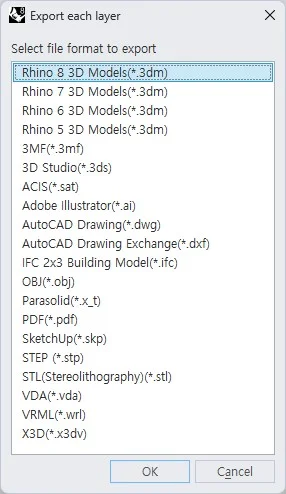
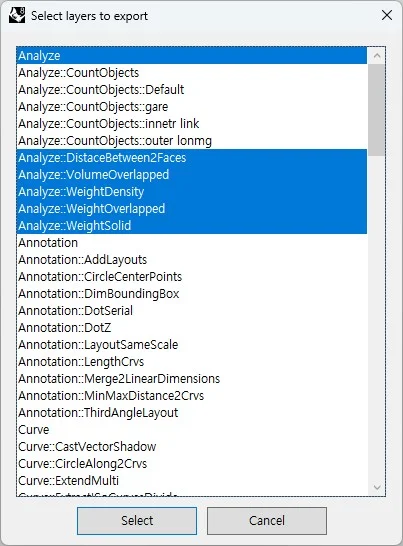
- This is convenient for saving and transferring modeling data by part.
 ImportFilesinFolder – Imports all files within a specified folder.
 MergeLayers - Merges multiple layers into a single layer.
 ExplodeBlockInSameLayer - When exploding Block Instances, objects remain on their original layers.
ImportFilesinFolder
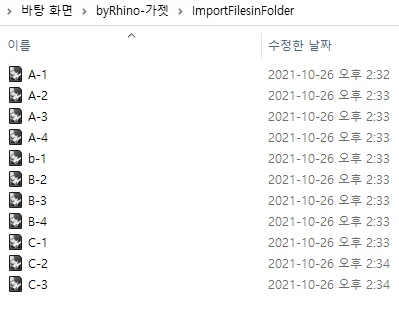
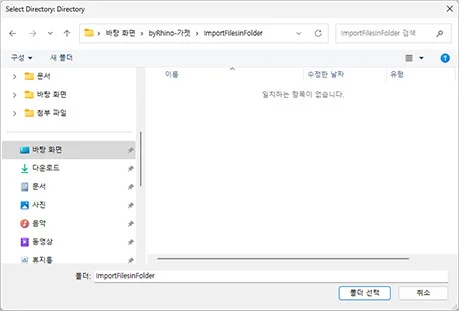
 ImportFilesinFolder : Imports all files within a specified folder.
- Run ImportFilesinFolder.
- Select the folder to import from.
- Set options and confirm.
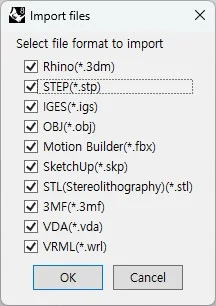
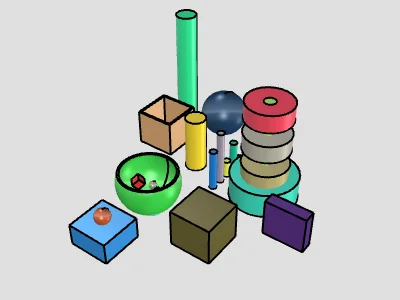
Option
- Align
Aligns files - AddNameDot
Displays file names in a Dot
- This is convenient for importing and reviewing all files within a working folder.
- All file extensions importable by Rhino are supported.
 ExportEachLayer – Saves(exports) files by layer.
 MergeLayers - Merges multiple layers into a single layer.
 ExplodeBlockInSameLayer - When exploding Block Instances, objects remain on their original layers.
WorksessionMerge
 WorksessionMerge : Merges Worksession files into a single file.
- Attach working files in Worksession.
- Run WorksessionMerge.
PrintTextContents
 PrintTextContents : Allows checking the contents of TEXT, DOT, and DIM at once, and copying or exporting them.
- Run PrintTextContents
- Workflow
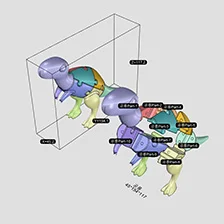
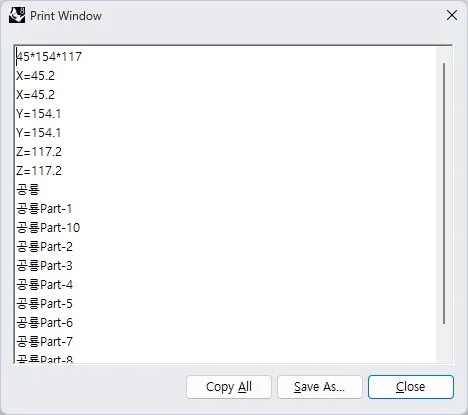
Option
- Copy All
Copies all text. - Save As
Saves as a .txt file extension.
- The copied content can be pasted into Excel, Notepad, etc.
 ExportEachLayer – Saves(exports) files by layer.
 ImportFilesinFolder – Imports all files within a specified folder.
 ExplodeBlockInSameLayer - When exploding Block Instances, objects remain on their original layers.
ExplodeBlockInSameLayer
 ExplodeBlockInSameLayer : When exploding Block Instances, objects remain on their original layers.
- Run ExplodeBlockInSameLayer.
- Select the Block object.
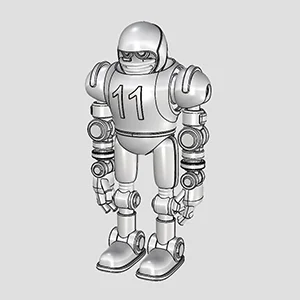
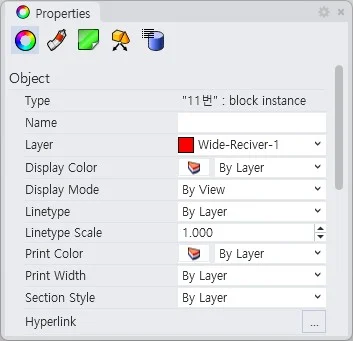
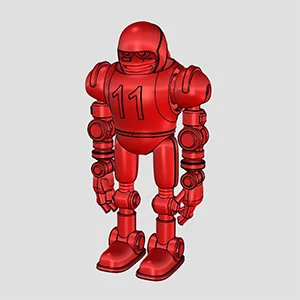
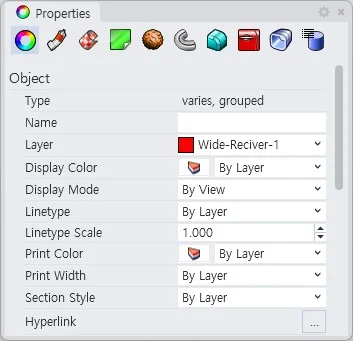
- When exploding Block Instances, they usually move to the layer set when the Block was created. However, using the ExplodeBlockInSameLayer command keeps the objects on the layer they were most recently assigned to.
 ExportEachLayer – Saves(exports) files by layer.
 ImportFilesinFolder – Imports all files within a specified folder.
 MergeLayers - Merges multiple layers into a single layer.
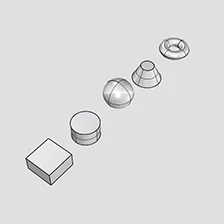
MergeLayers
 MergeLayers : Merges multiple layers into a single layer.
- Run MergeLayers.
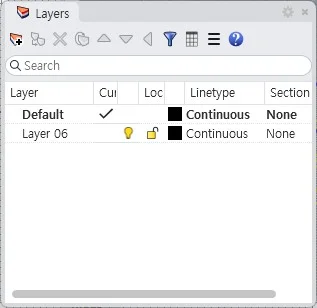
- Select layers and confirm.
- Choose to merge into an existing layer or create a new layer.
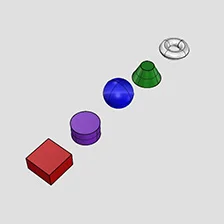
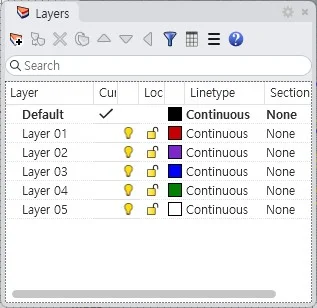
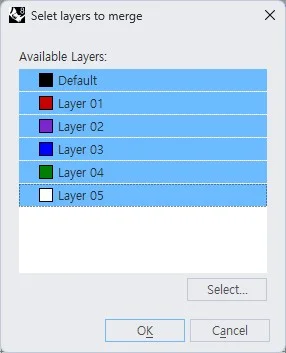
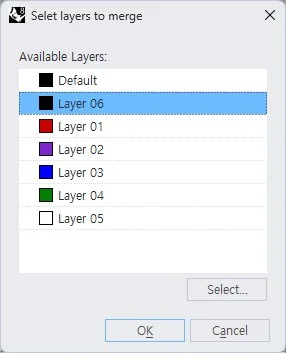
Option
- NEW
Creates a new layer - Set layer Current
Merges all layers except the selected one (maintains the currently selected layer) - Select
Allows checking the layer after selecting objects
- You can move objects distributed across multiple layers into a single layer.
- You can move objects to a single layer and merge layers simultaneously.
- You can create a new layer to move objects to and also merge layers if needed.
 ExportEachLayer – Saves(exports) files by layer.
 ImportFilesinFolder – Imports all files within a specified folder.
 ExplodeBlockInSameLayer - When exploding Block Instances, objects remain on their original layers.
ImagePacker
 ImagePacker : Extracts and consolidates scattered texture and image resources into a single folder.
- Run ImagePacker.
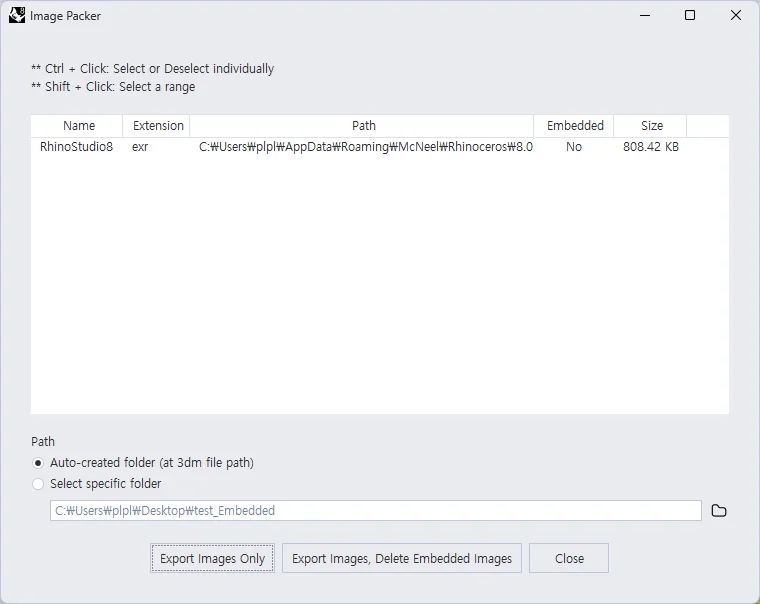
- A dialog box will appear.
Option
- Image List
Displays a list of textures and embedded images currently used in the document.- Name: Image file name
- Extension: File extension (png, jpg, etc.)
- Path: Original or cached path currently referenced by the image
- Embedded: Embedded inside the .3dm file
- Ctrl + Click: Select or deselect individual items
- Shift + Click: Select a range of consecutive items
- Path
Sets the folder where the extracted images will be saved.- Auto-created folder in the 3dm file path: Default setting. Automatically creates and saves images to a <3dmFileName>_Embedded folder in the directory where the 3dm file is located.
- Select specific folder: Click the folder icon button on the right to choose a target destination folder directly.
- Buttons & Actions
Export Images Only- Extracts and copies the selected images (or all images) to the specified folder.
- Automatically relinks the reference paths of document materials and render content to the newly exported folder location.
- The embedded state within the 3dm file is preserved, making this useful for gathering scattered resources into a single folder for backup or sharing.
Export Images, Delete Embedded Images
-
- Extracts images to the target folder and relinks their paths, then saves the document with the embedded images removed from the 3dm file.
- Significantly reduces .3dm file size.
- Alert dialog: A confirmation alert dialog pops up when clicking the button.
- Backup the 3dm file first" option: Enabled by default to create a point-in-time copy of the original file.
- Saving the file is required: Because embedded resources inside the .3dm file are read directly from disk, this command must be run on a .3dm file that has been saved at least once. (Cannot be run on an unsaved "Untitled" document.)
- When deleting embedded images, all embedded images in the document are safely extracted regardless of current selection to prevent missing links or data loss.
 ExportEachLayer – Performs an export operation using a specified file format by selecting specific layers.
 ImportFilesinFolder – Automatically imports multiple files from a designated folder.
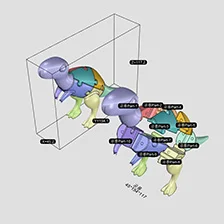
 PrintTextContents : Allows checking the contents of Text, Dot, and Dim at once, and copying or exporting them.
- Run PrintTextContents
- Workflow
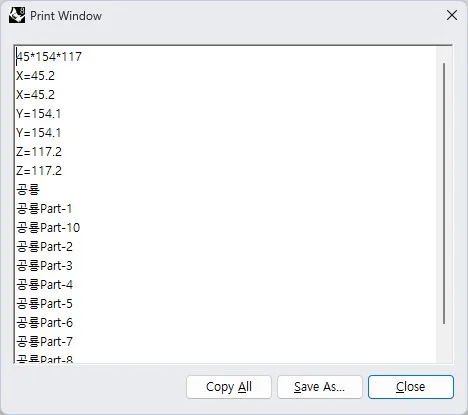
Option
- Copy All
Copies all text. - Save As
Saves as a .txt file extension.
- The copied content can be pasted into Excel, Notepad, etc.
 ExportEachLayer – Saves(exports) files by layer.
 ImportFilesinFolder – Imports all files within a specified folder.
 ExplodeBlockInSameLayer - When exploding Block Instances, objects remain on their original layers.