Transform
Copy2Pts
 Copy2pts : Copies objects from a base point to the coordinates of an entered point object.
- Run Copy2pts.
- Select the objects to copy.
- Select the base point on the selected object.
- Select the point to copy to.
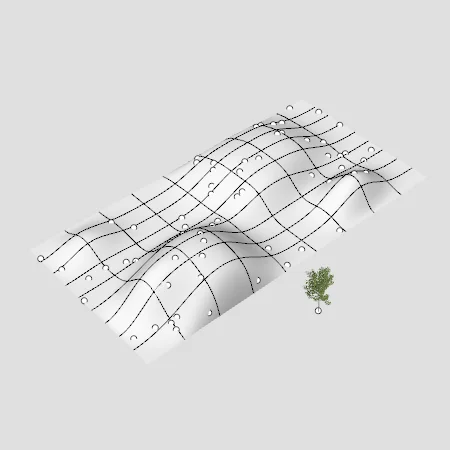
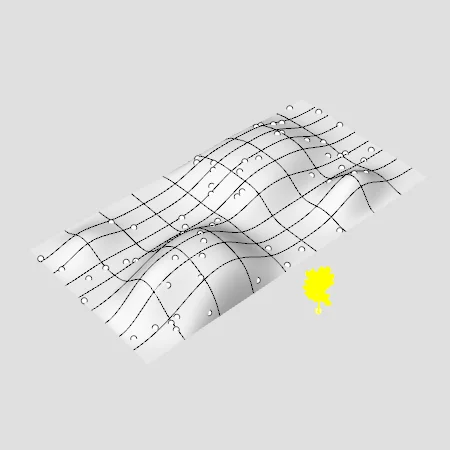
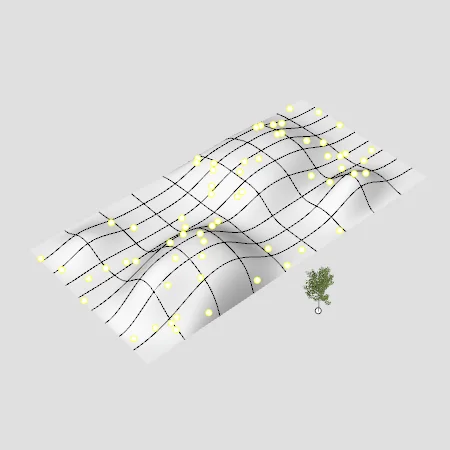
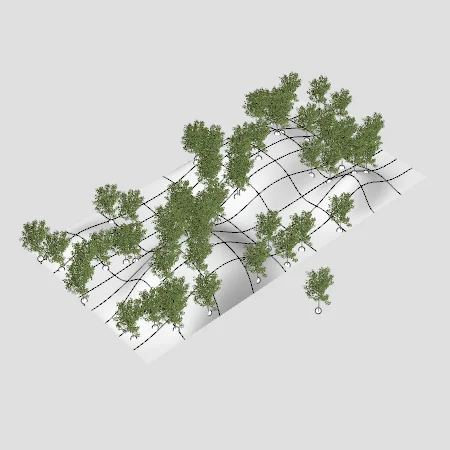
- Allows batch copying of objects without quantity limits, using a base point.
MoveToZLevel
 MoveToZLevel : Moves objects to a specified Z-level height.
- Run MoveToZLevel.
- Select the objects to move.
- Select an option from the command prompt (Top, Middle, Bottom).
- Enter the Z-value.
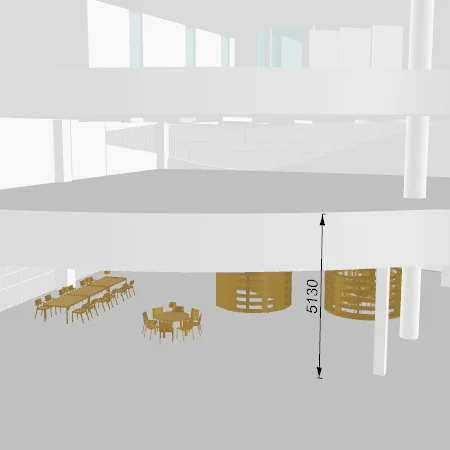
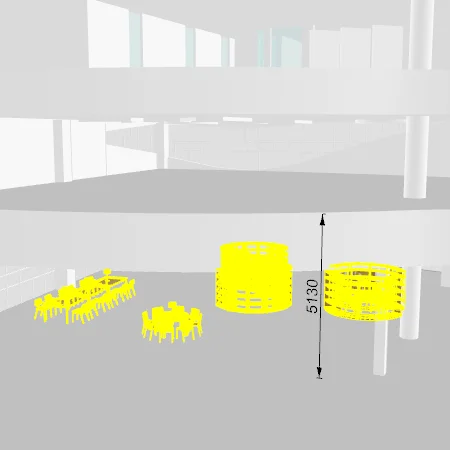
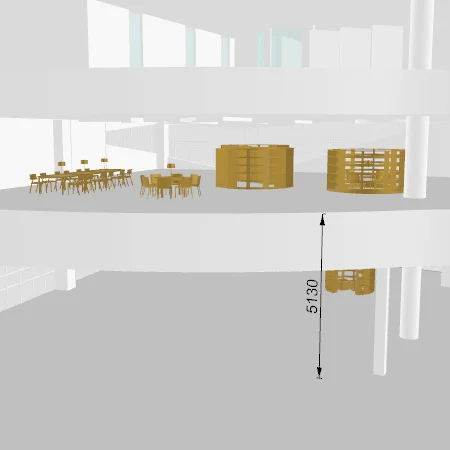
Option
- Align
The height at which the object will be aligned, or one of three divisions of the object's height(Top, Middle, Bottom)
- Allows precise Z-axis(height) movement by inputting dimensions.
 MoveToZPt – Moves objects to the height of a base point.
MoveToZPt
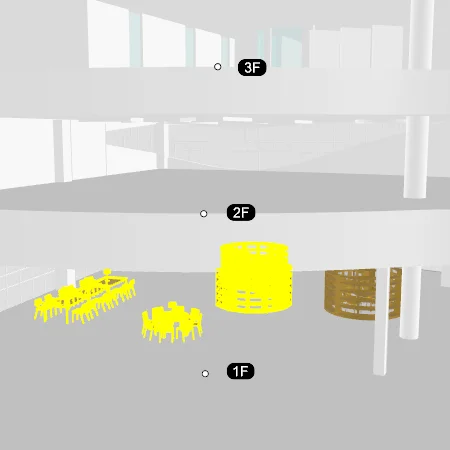
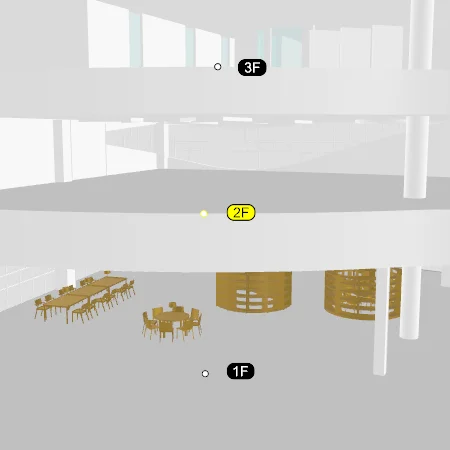
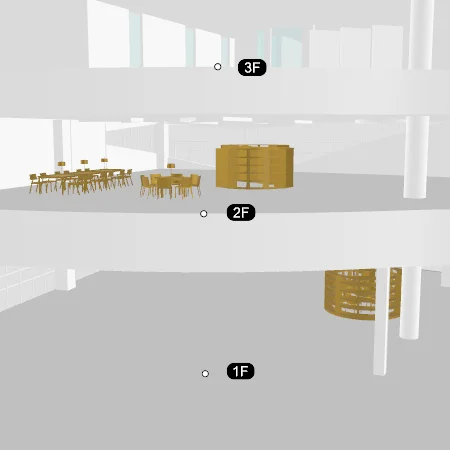
 MoveToZPt : Moves objects to the height of a base point.
- Run MoveToZPt.
- Select the objects to move.
- Select an option from the command prompt(Top, Middle, Bottom).
- Select the point to move to.
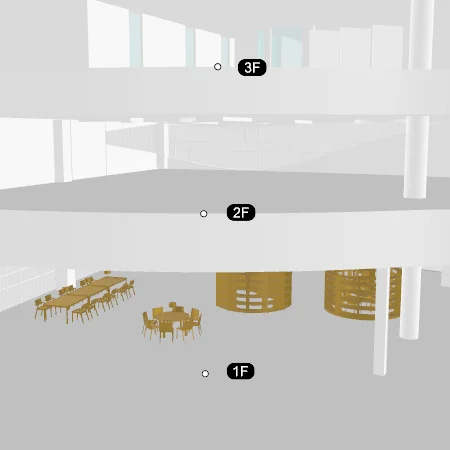
Option
- Align
The height at which the object will be aligned, or one of three divisions of the object's height (Top, Middle, Bottom)
 MoveToZLevel – Moves objects to a specified Z-level height.
OrientByFace
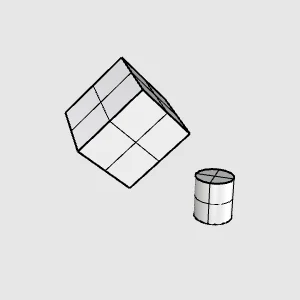
 OrientByFace : Orients objects from a base surface to a target surface.
- Run OrientByFace.
- Select the objects to move.
- Select the base surface for the objects to move from.
- Select options.
- Select the target surface for the objects to move to.
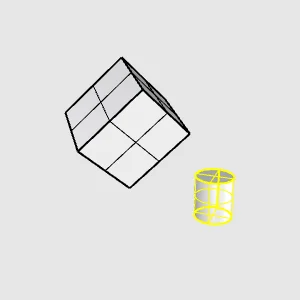
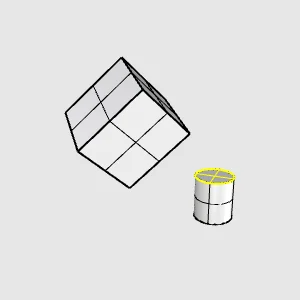
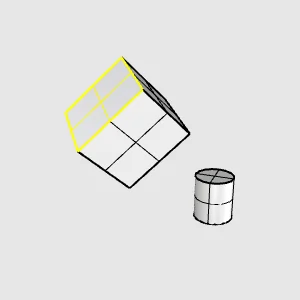
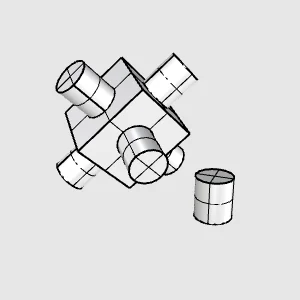
Option
- Copy
Whether to copy objects - Flip
Changes the orientation to top or bottom, or desired position on the surface
- Extrusions, polysurfaces, and surfaces can be used.
- Cylinders and circles move based on their UV center point.
 OrientByFlatFaceToXY - Aligns a component with a flat face to the XY axes.
OrientByFlatFaceToXY
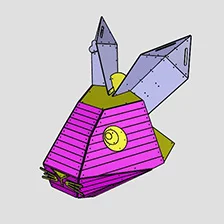
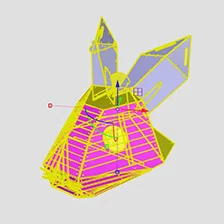
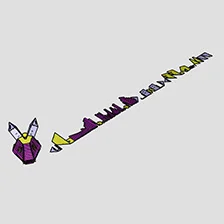
 OrientByFlatFaceToXY : Aligns a component with a flat face to the XY axes.
- Run OrientByFlatFaceToXY
- Select objects
- Set options.
Option
- Copy
- Yes
Retains objects composed of members - No
Deletes objects composed of members
- Yes
- Space
- Sets spacing between members
- Align
- Top
Aligns members to the top on the XY axis - Middle
Aligns members to the middle on the XY axis - Bottom
Aligns members to the bottom on the XY axis
- Top
- Allows aligning architectural members to a plane.
 OrientByFace - Orients objects from a base surface to a target surface.
Rotate3DIntersect
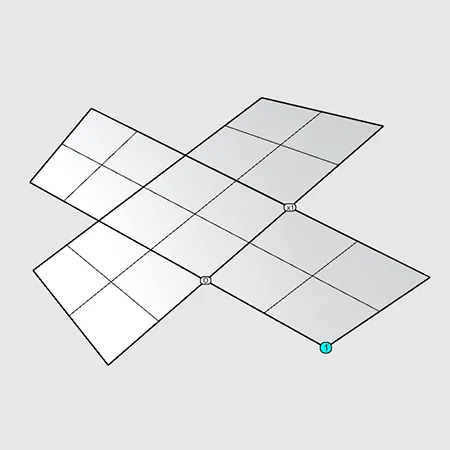
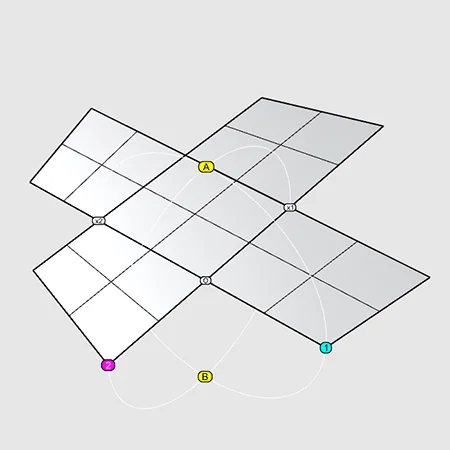
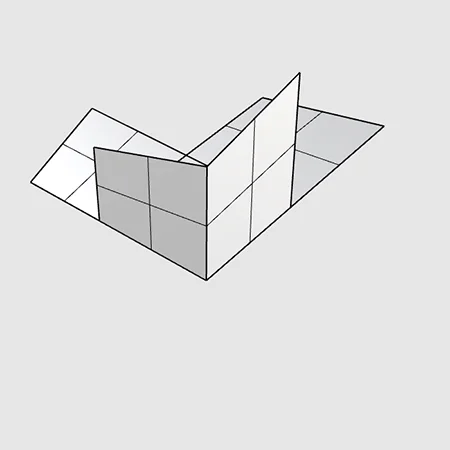
 Rotate3DIntersect : Rotates objects in 3D around an intersection point.
- Run MoveToZPt.
- Select the object to rotate.
- Select two points to set the rotation axis, then select the intersection point to meet after rotation.
- Select the second object to rotate.
- Select two points to set the rotation axis, then select the intersection point to meet after rotation.
- Select intersection point A or B to rotate.
SplitPlanar
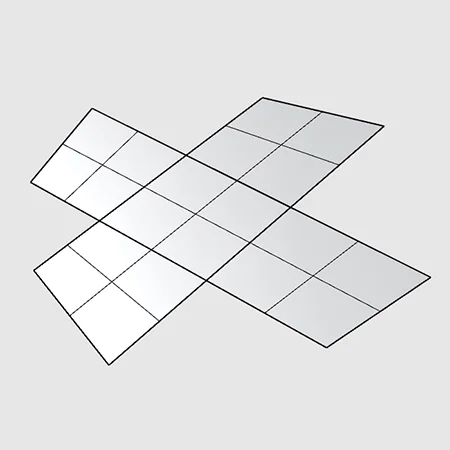
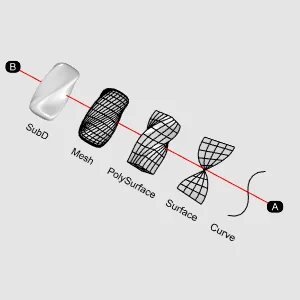
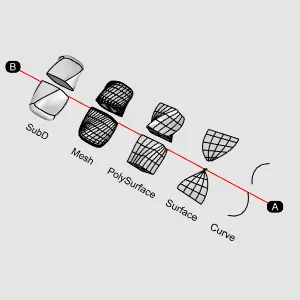
 SplitPlanar : Cuts selected objects in a specified direction.
- Run SplitPlanar.
- Select the objects to cut.
- Set the start and end points of the cutting plane(up to 3 points possible).
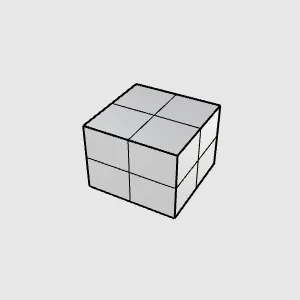
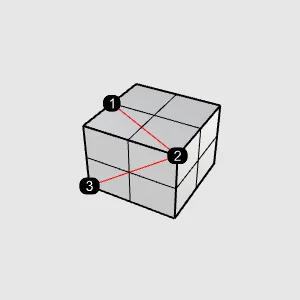
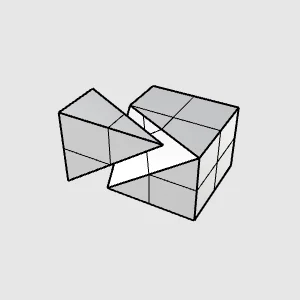
- Block objects automatically convert to polysurfaces when cut.
- If the target object is a solid, the cut objects will also be created as solids.
- All object properties are maintained after splitting.
Example
- All objects can be split.
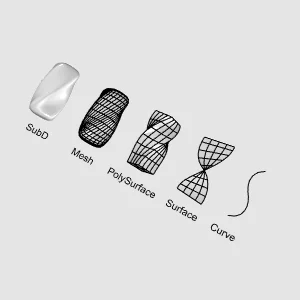
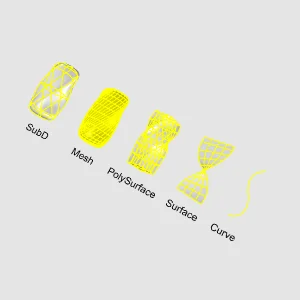
SubLayersByGroup
 SubLayersByGroup : Creates layers by dividing selected objects into groups.
- Group objects based on layer division criteria.
- Run SubLayersByGroup.
- Select the object groups to create layers for.
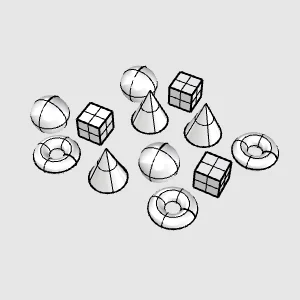
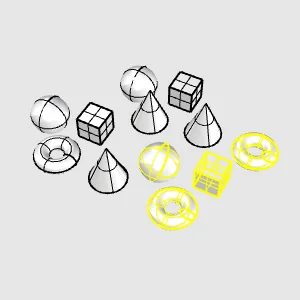
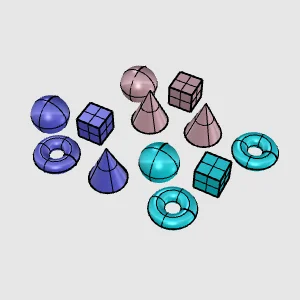
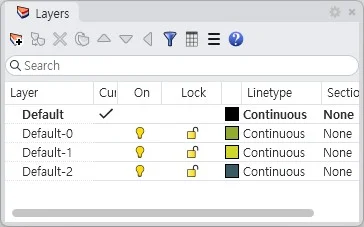
- Creates new sub-layers under the selected layer.
- If there are multiple nested groups, it creates a single sub-layer based on the highest-level group.
- This is effective when grouping by material before rendering.
Example
- Example of rendering work after applying the command.
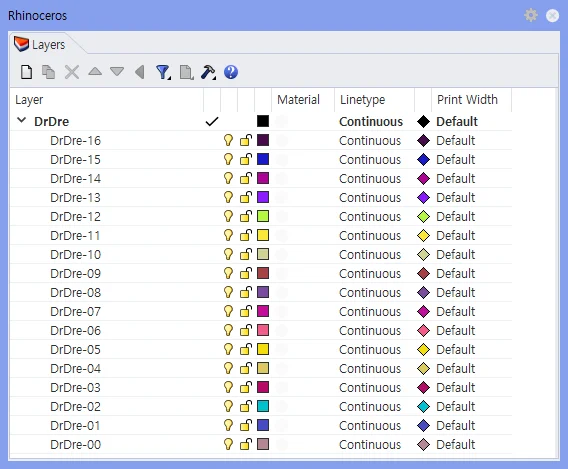


 RandomizeLayersMaterialColor - Randomly moves, rotates, scales, or changes the color of multiple objects.
 ObjColor2MatColor– Creates a material with the same display color; if the display standard is by layer, creates a layer material.
 ObjColorAsMatColor - Applies the material color as the display color.
TransformObjects
 TransformObjects : Transforms objects(e.g., high-volume mesh data) with move, rotate, and mirror options. Useful for transforming large scan data.
- Run TransformObjects.
- Select the objects you want to move.
- Move: Click from a base point to a target point, or enter XYZ dimensions to move.
- Rotate: Rotate around a set axis, or Orient based on 2 or 3 points.
- Mirror: Copy symmetrical mesh data based on a set axis.
- Clipping: Set a reference axis to verify the object's surface.
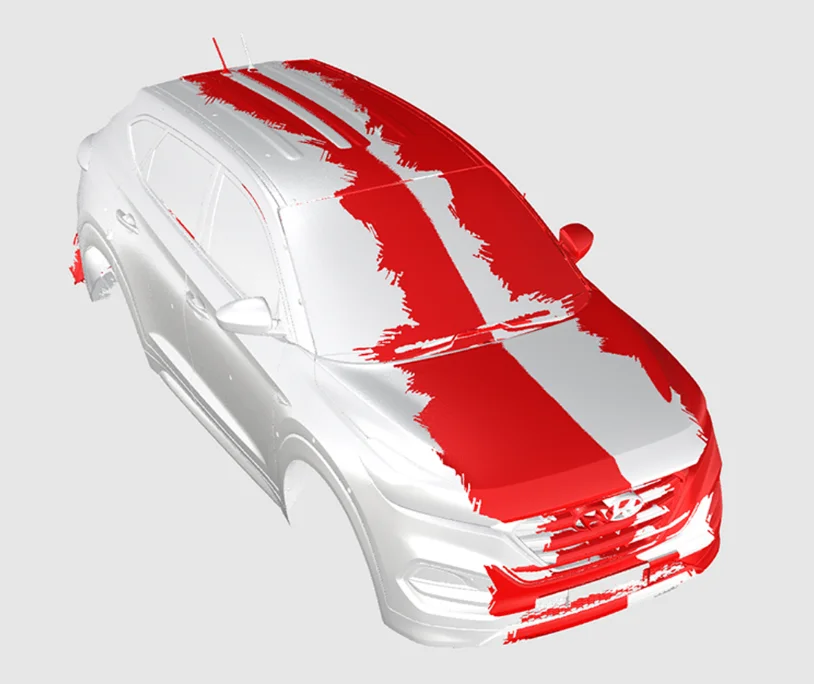
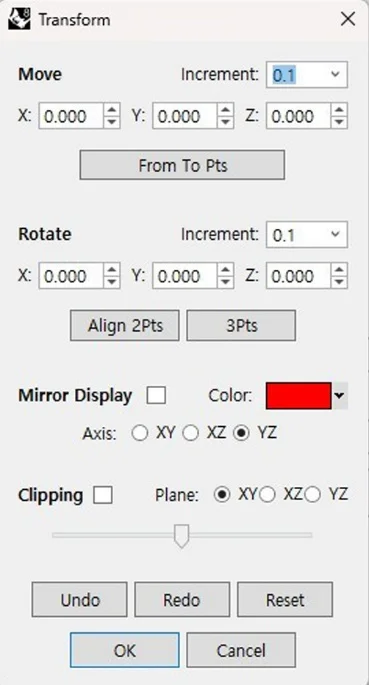
Option
- Move
Enter X, Y, Z axis movement distances, or select with up/down arrows- Increment
Sets the basic unit for X, Y, Z axis increments - Form To Pts
Moves based on selecting the first and last points
- Increment
- Rotate
Enter X, Y, Z axis rotation angles, or select with up/down arrows to rotate objects- Increment
Sets the basic unit for X, Y, Z axis increments - Align 2Pts
Rotates objects by setting two lines
First line is the rotation reference; second line is set arbitrarily based on the rotation angle - 3Pts
Based on the start point, the first point is the object's reference, the second point sets the rotation angle
- Increment
- Mirror
Symmetrical transformation of objects based on two axes (preview available with bounding box selection)- Color
Changes the mirrored color (color change, eyedropper, copy, paste) - Axis
Allows mirroring objects based on XY, XZ, YZ axes
- Color
- Clipping
Cutting view of objects based on two axes (preview available with bounding box selection)- Plane
Allows checking the object's cutting view based on XY, XZ, YZ axes
- Plane
- Undo
Undoes the last action - Redo
Redoes the last action - Reset
Resets to initial state
TrimBox
 TrimBox : Displays objects trimmed by a box. The trimmed area updates with box transformations.
- Run the TrimBox command.
- Select the target objects.
- Specify the box area to trim and display.
- Choose whether to keep or remove the original objects.
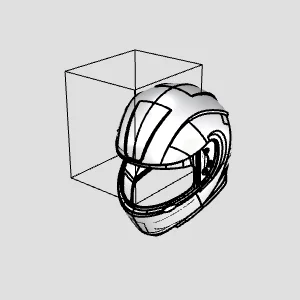
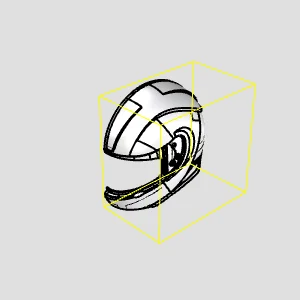
Option
- Add objects
Keeps original objects - Remove objects
Removes original objects
- The clipping plane consists of 6 planes.
- Faces or bounding boxes can be freely moved using handles, and features such as section filling, color options, and copying cut objects via the Extract button are supported.
Randomize
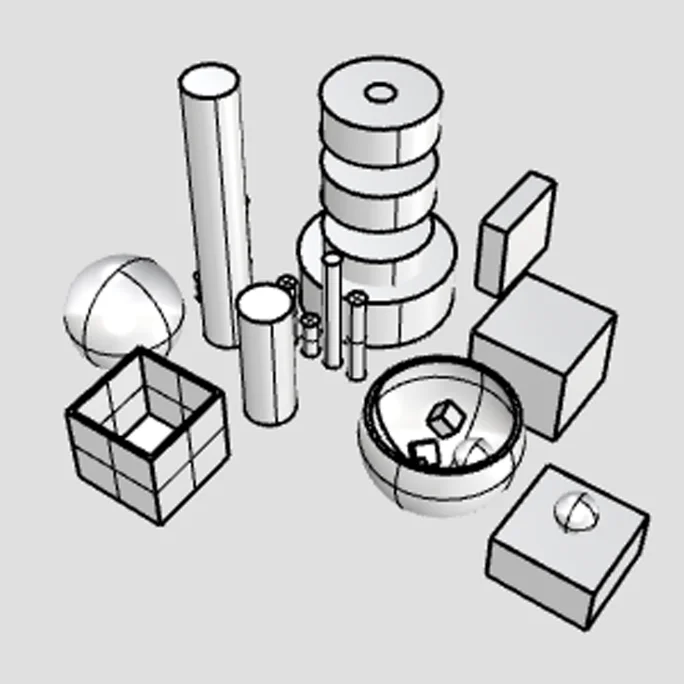
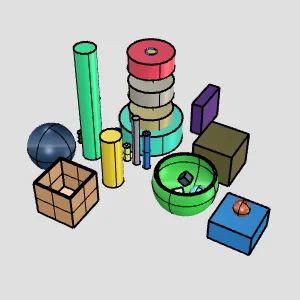
 Randomize : Randomly moves, rotates, scales, or changes the color of multiple objects.
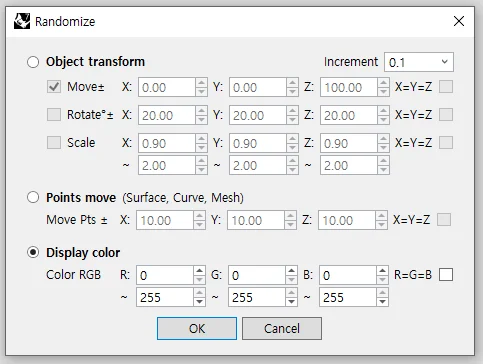
- Run Randomize.
- Set options and confirm.
Option
- Object transform
- Move
Moves by the set values along X, Y, Z axes. - Rotate
Rotates by the set values along X, Y, Z axes. - Scale
Scales by the set values along X, Y, Z axes.
- Move
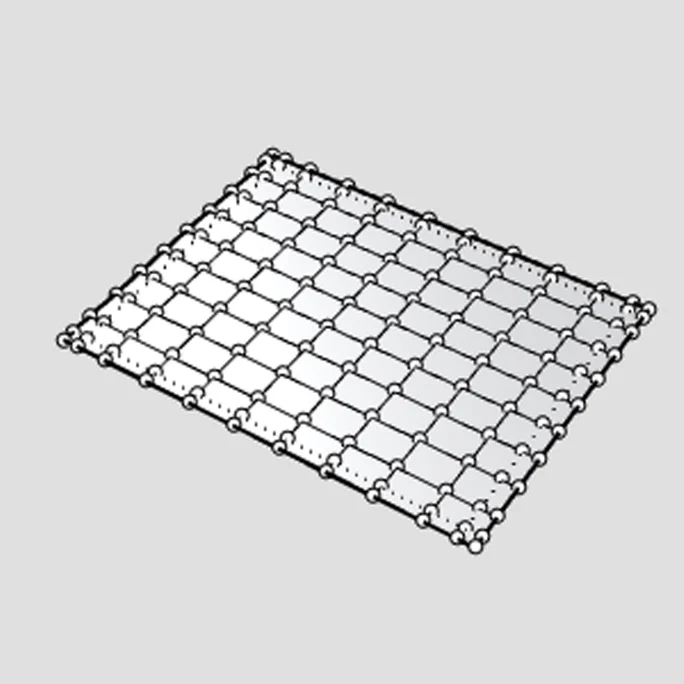
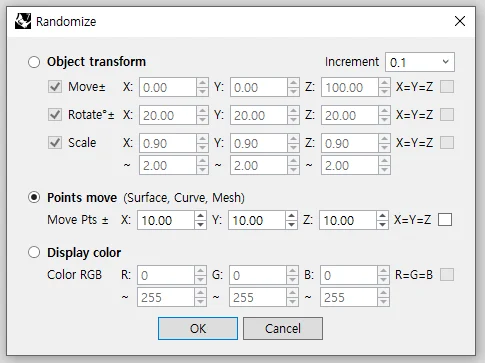
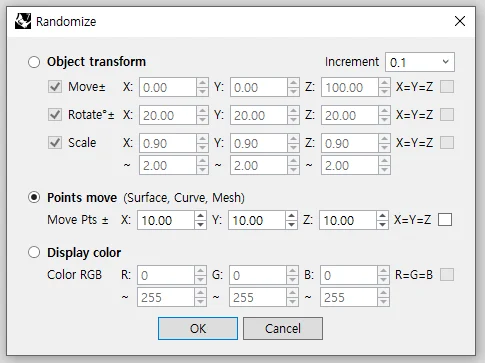
- Point move
Moves by the set values along X, Y, Z axes. - Display color
Changes color by the set RGB range values.
- Convenient for naturally moving objects slightly.
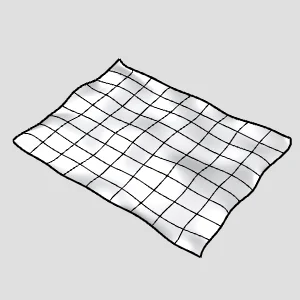
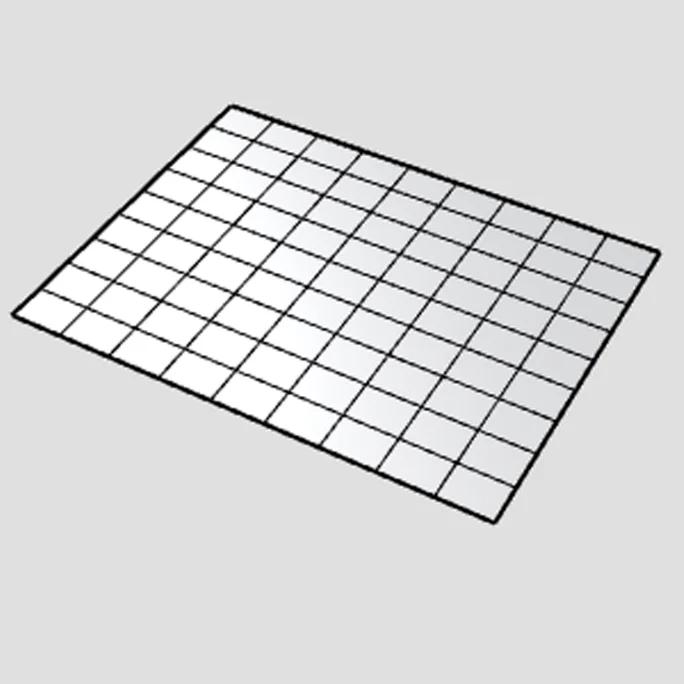
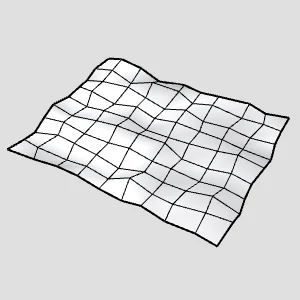
- Used to randomly transform control points of surfaces and curves.
Example
- Object transformation
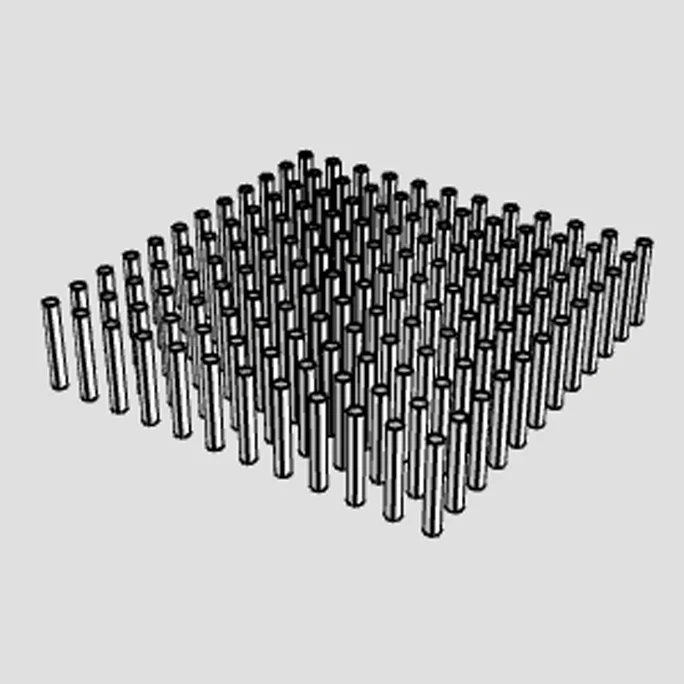
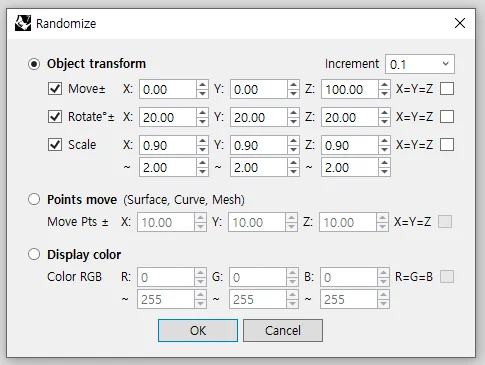
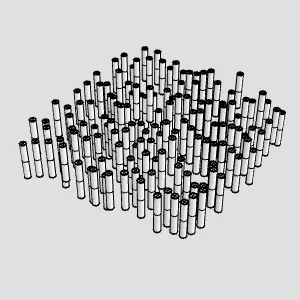
- Point move(surface)
- Point move(mesh)
- Display color
AlignPanel
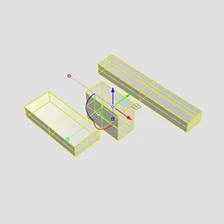
 AlignPanel : A panel for aligning and distributing along each axis.
- Run AlignPanel.
- Select the target objects.
- Execute using the panel icons.
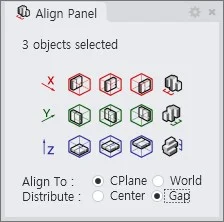
Option
- Align To
- CPlane
Relative to the CPlane - World
Relative to the World coordinates
- CPlane
- Distribute
- Center
Based on the center - Gap
Based on the gap
- Center
- Allows alignment along XYZ axes.
- Undo/Redo is possible.
 AlignPanelOff – Closes the align panel display window.
AlignPanelOff
 AlignPanelOff : Closes the align panel display window.
- Close the AlignPanelOff window.
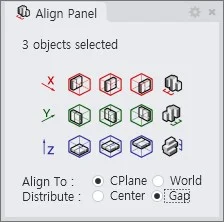
 AlignPanel – A panel for aligning and distributing along each axis.