Display, Settings
SetAbsoluteTolerance
 SetAbsoluteTolerance : Quickly changes the absolute tolerance.
- Run SetAbsoluteTolerance.
- Enter the absolute tolerance to change in the command window.
- Changes the AbsoluteTolerance in the Units section within Rhino Options.
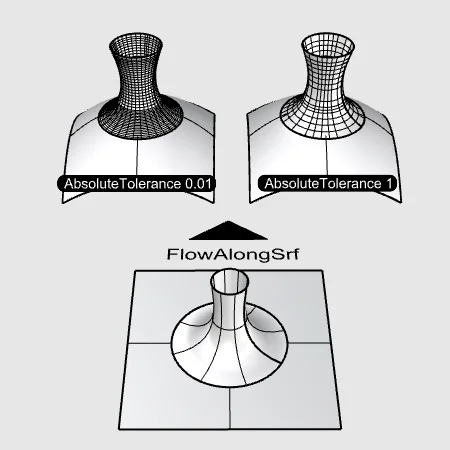
- When using commands where absolute tolerance affects calculations(e.g., FlowAlongSrf), running with a lower tolerance value can lead to faster and comparatively simpler results.
- When maintaining curvature of G2 or higher, objects created with a low AbsoluteTolerance can be joined, and fewer points make subsequent point editing easier.
Example
- Image example of FlowAlongSrf results based on AbsoluteTolerance.
BackgroundColor
 BackgroundColor : Changes the viewport background color.
- Run BackgroundColor.
- Adjust the color value in the selection window and confirm.
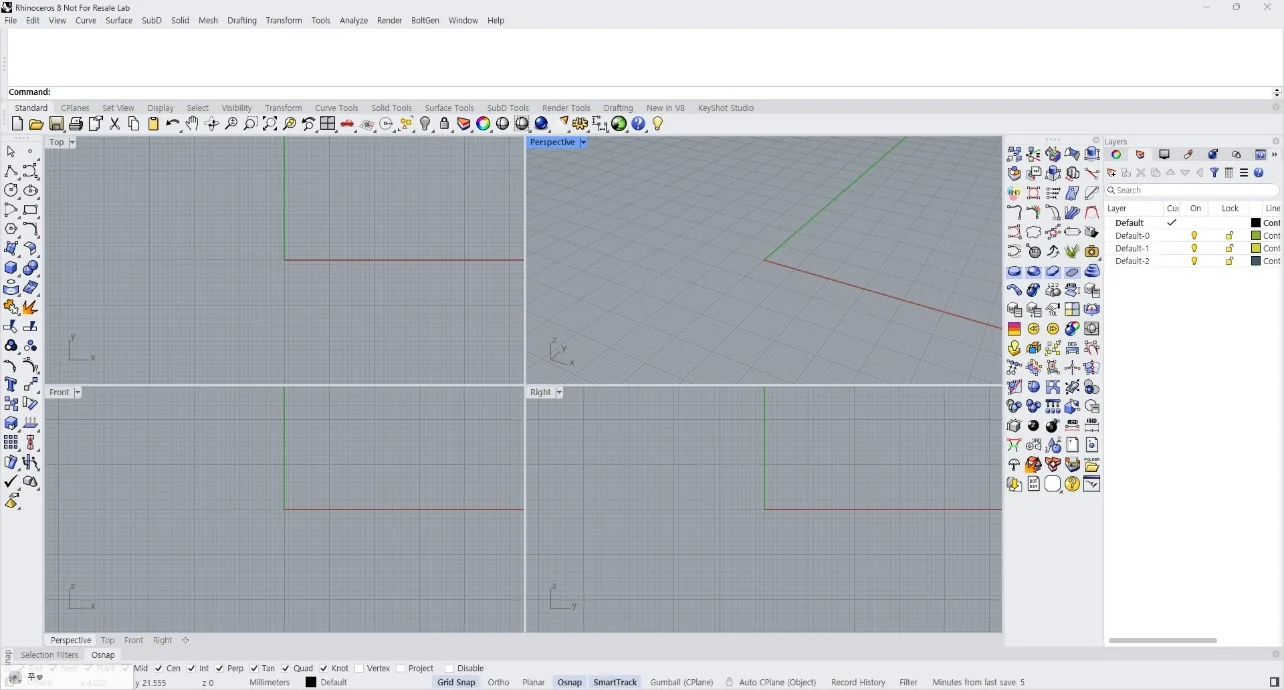
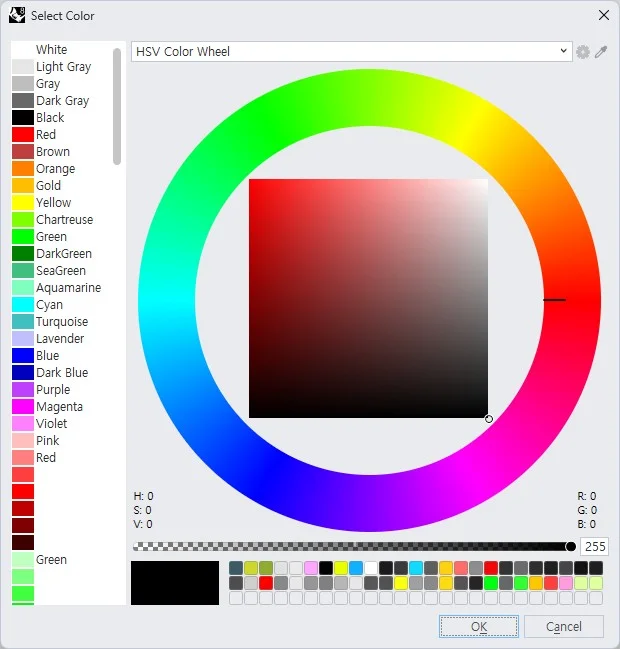
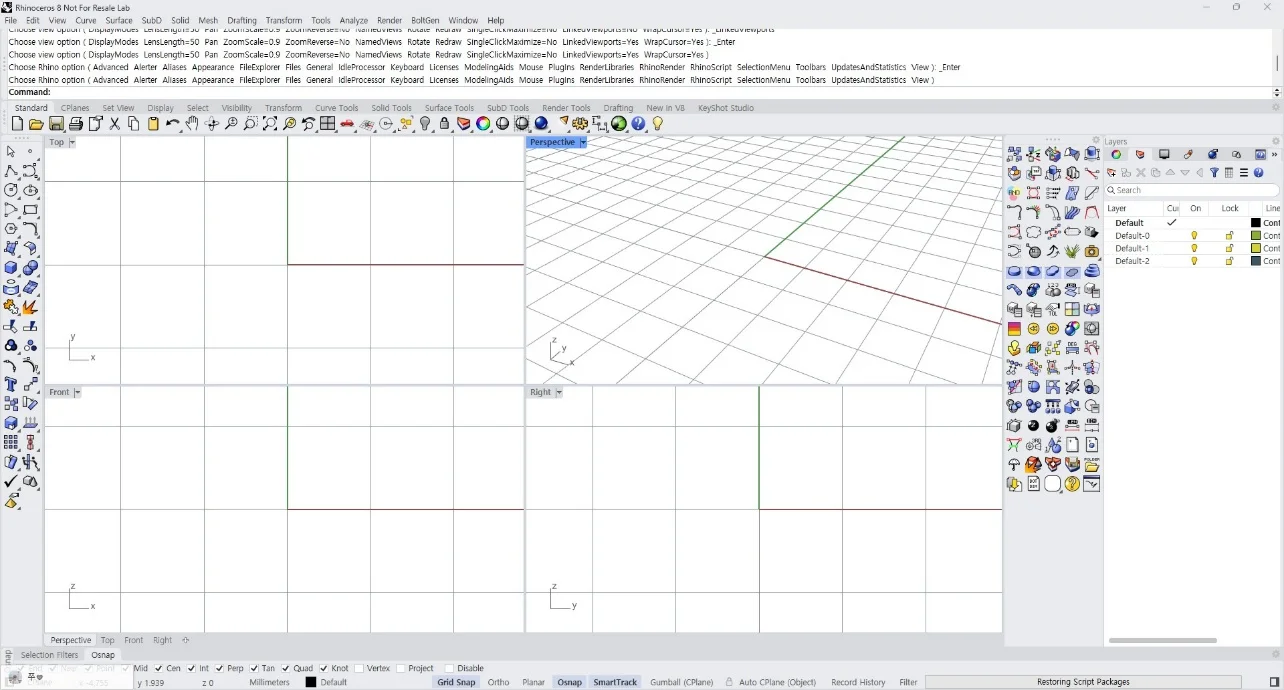
- If the display is set to a solid color(e.g., Solid Color), the command can't be recognized. It's available when the setting is "Use Application Setting."
 BackgroundColorDefault- Changes the viewport background color to the default.
BackgroundColorDefault
 BackgroundColorDefault : Changes the viewport background color to the default.
- Run BackgroundColorDefult
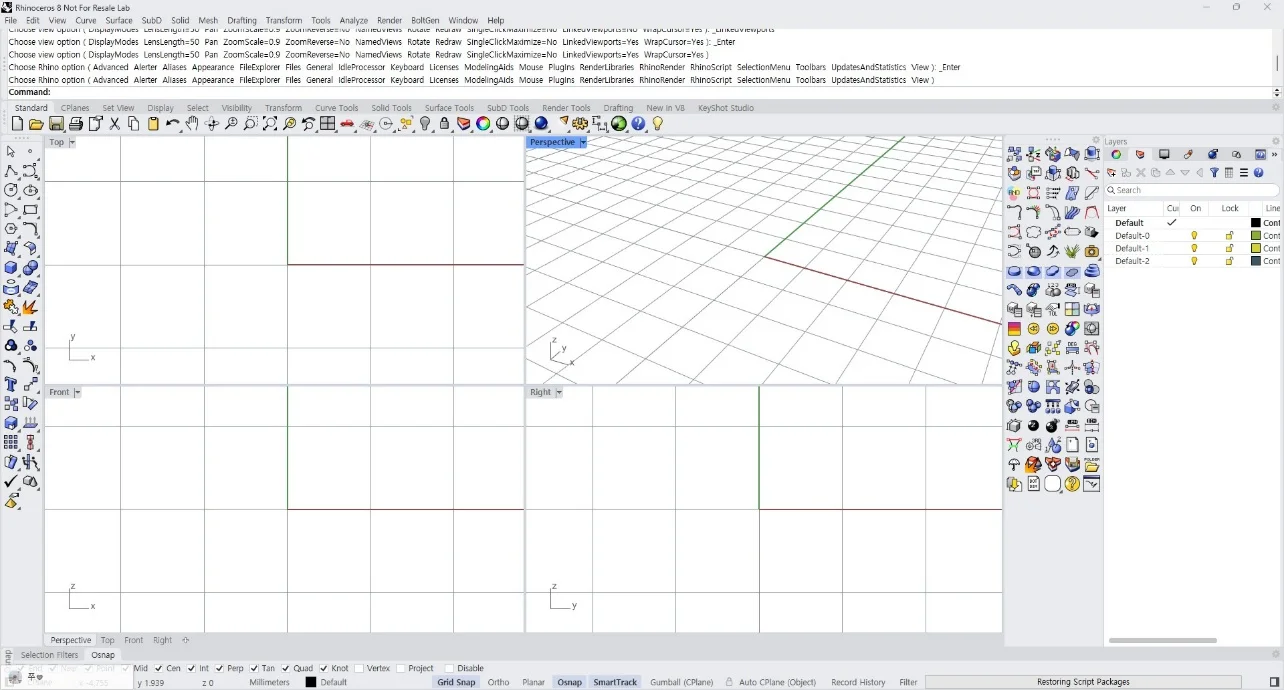
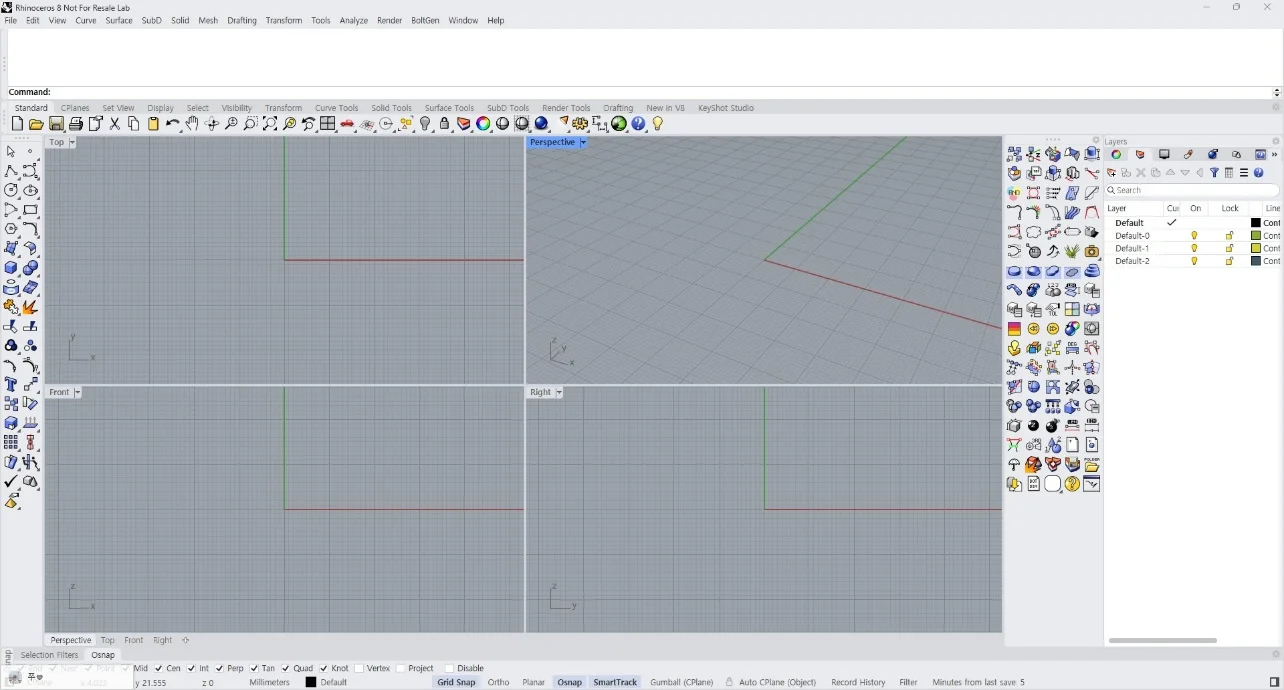
 BackgroundColor – Changes the viewport background color.
ClippingPlaneNormal
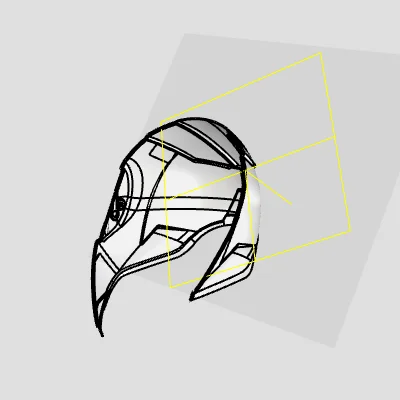
 ClippingPlaneNormal : Creates a clipping plane normal to a surface.
- Run ClippingPlaneNormal.
- Select the surface of the target object.
- Specify the center point of the clipping plane on the surface.
- Specify a second reference point to create the clipping plane.
- Click to specify the desired angle.
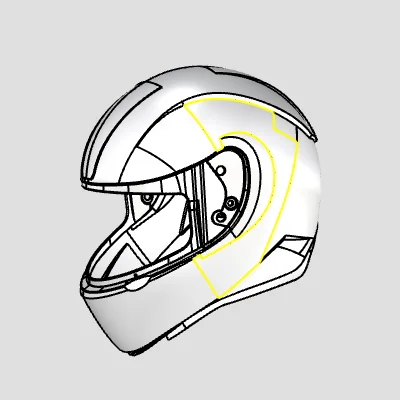
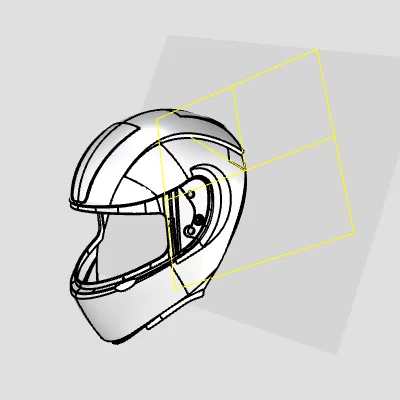
Option
- Copy
Sets whether to copy the clipping plane.
- The size of the clipping plane is created according to the spacing of the specified reference points.
- It clips normal to the surface.
GradientObjectColor
 GradientObjectColor : Displays selected objects with a gradient color between two chosen colors.
- Run GradientObjectColor.
- Select two colors for the gradient.
- Select the target objects.
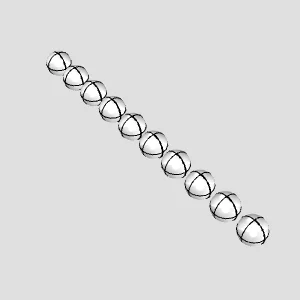
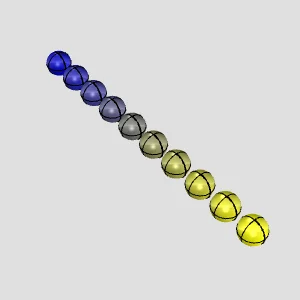
- For aligned objects, a gradient can be created by dragging the mouse.
- For unaligned objects, select and apply one by one in the desired order.
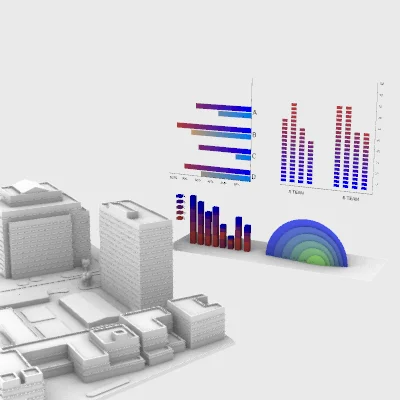
- Object colors can be changed in real time while configuring options, and gradient order options (selection order, distance, direction) are supported.
Examples
SlideForward / SlideBackward
 SlideForward /
 SlideBackward : Switches between named views in alphabetical order.
- Run SlideBackward or SlideForward.
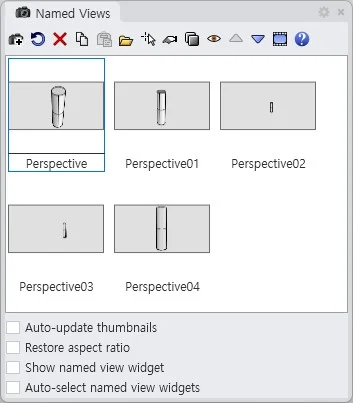
- Switch views forward or backward in the order set in Named Views.
Option
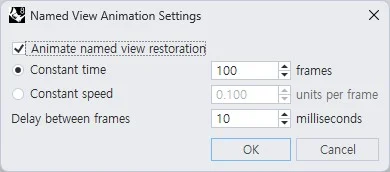
- Named View Animation Settings
Configures named view animation - Animate named view restoration
Checks whether to use animation when restoring named views - Constant time
Constant time(fewer frames-faster, more frames-slower) - Constant speed
Constant speed(higher units per frame-faster, lower units per frame-slower) - Delay between frames
Delay between frames(higher milliseconds-slower, lower milliseconds-faster)
- Can be used after setting views in Named View.
- Can be easily used in presentation situations by setting the command as a shortcut.
- The command can be run even when the Named View window is closed.
 SlideCurrent - If the viewport has been manipulated while a Named View is saved, returns to the saved view.
SlideCurrent
 SlideCurrent : If the viewport has been manipulated while a Named View is saved, returns to the saved view.
- Run SlideCurrent
- The command runs based on the view selected in Named View.
 SlideForward /
 SlideBackward- Switches between named views in alphabetical order.
ObjColor2MatColor
 ObjColor2MatColor : Creates a material with the same display color; if the display standard is by layer, creates a layer material.
- Run ObjColor2MatColor.
- Select objects.
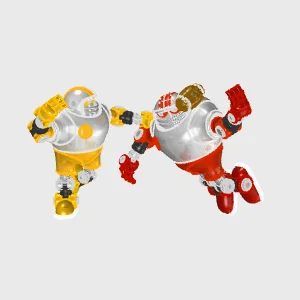

- Creates and applies a material with the same color as the display color.
- The material type is set to Custom, and the name is generated as an RGB color value (e.g., 000,000,000).
 ObjColorAsMatColor - Applies the material color as the display color.
ObjColorAsMatColor
 ObjColorAsMatColor : Applies the material color as the display color.
- Run ObjColorAsMatColor.
- Select objects.

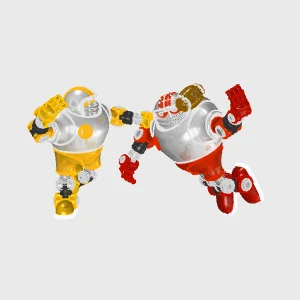
- Useful for matching material color and display color at once.
- Allows for more accurate visual judgment by checking the final rendering color directly on the work screen as you design.
 ObjColor2MatColor - Creates a material with the same display color; if the display standard is by layer, creates a layer material.
SyncDisplayModes
 SyncDisplayModes : Sets display modes to be identical.
- Select the viewport to be the standard.
- Run SyncDisplayModes.
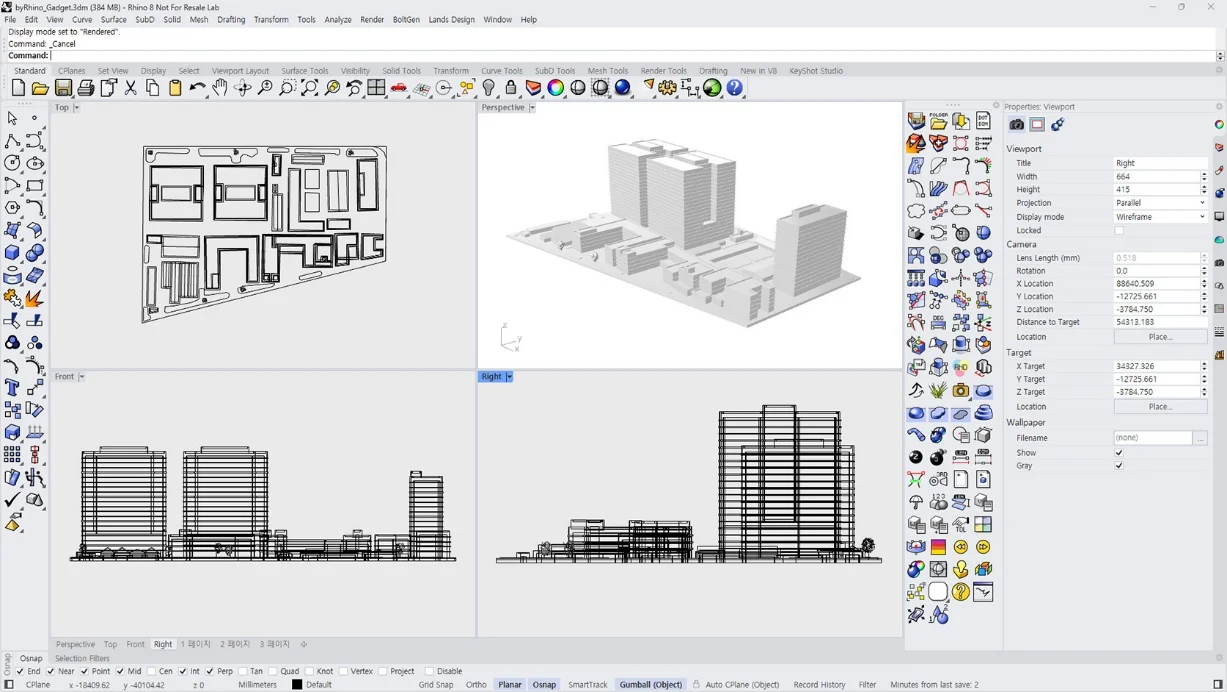
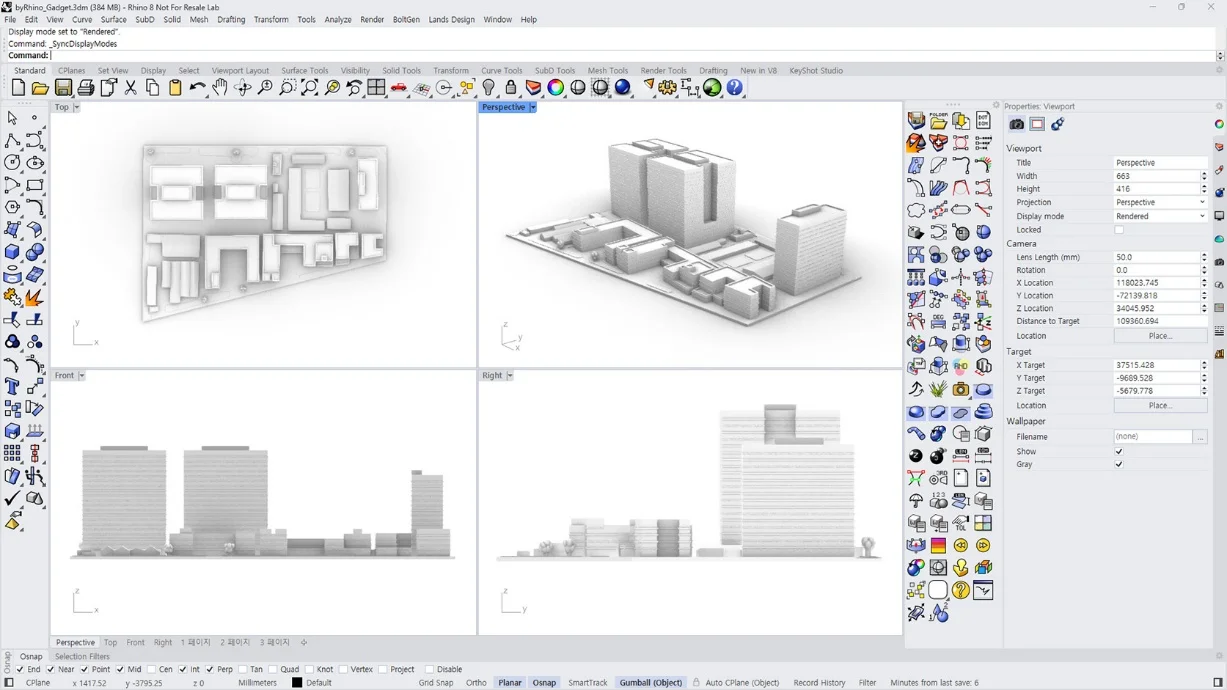
- Can be run in all types of display modes.
LayerOnByObjects
 LayerOnByObjects : Turns on only the layer of the selected object and turns off others.
- Run LayerOnByObjects.
- Select the target object.
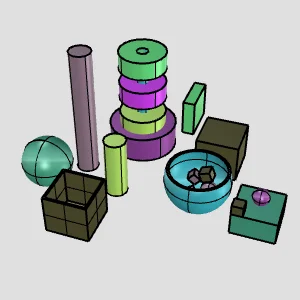
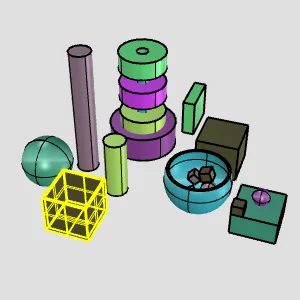
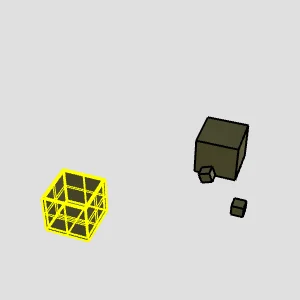
- Convenient when a large number of objects are tangled together.
ExplodedView
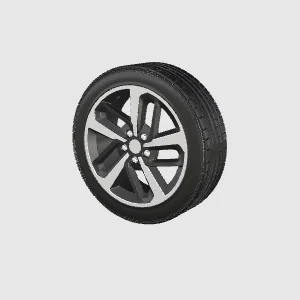
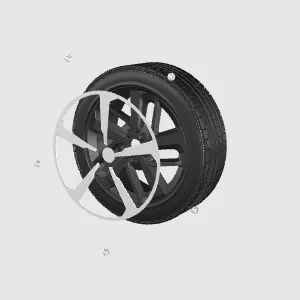
 ExplodedView : Moves selected objects simultaneously to create an exploded view.
- Run ExplodedView.
- Select the target objects.
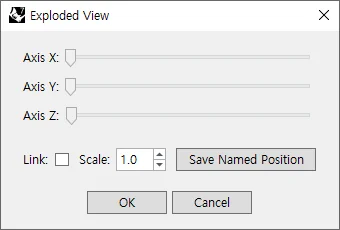
- Set options and confirm.
Option
- Axis X, Y, Z
Moves objects in the specified axis direction - Link
Moves all axes simultaneously
- Scale
Sets the movement amount
- Save Named Position
Saves the moved position
- Convenient for moving a large number of objects at once.
SelRandom
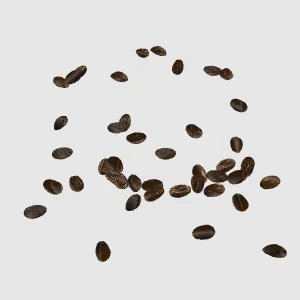
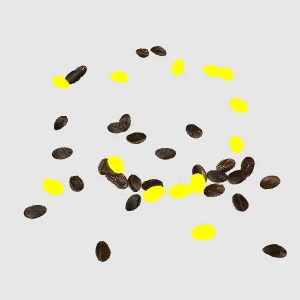
 SelRandom : Randomly selects objects by ratio or count.
- Run SelRandom.
- Select the target objects.
- Set options and confirm.
Option
- InputType
- Percentage
Selects by percentage
-
- Counts
Selects by count
- Convenient for randomly selecting a large number of objects.
 SelSameDots - Finds identical text within the content of selected Dots.
 SelDotsByContent – Finds similar or exact matching content within the selected Dots.
FullscreenNoTitleMax
 FullscreenNoTitleMax : Display fullscreen without the viewport title.
- Run FullscreenNoTitleMax
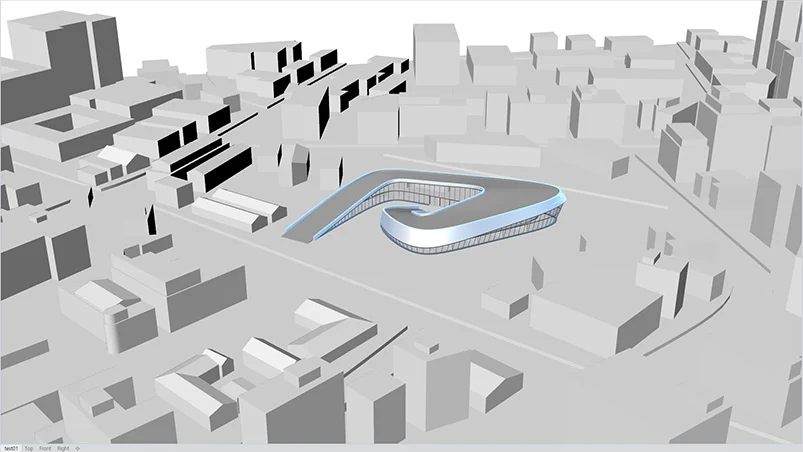
- It's recommended to use this as a shortcut command or hotkey.
- Unlike the existing Fullscreen command, it switches to full screen without the viewport text.
 BackgroundColor – Changes the viewport background color.
 BackgroundColorDefault- Changes the viewport background color to the default.
ObjectColor
 ObjectColor : Changes the object display color.
- Run ObjectColor.
- Select objects.
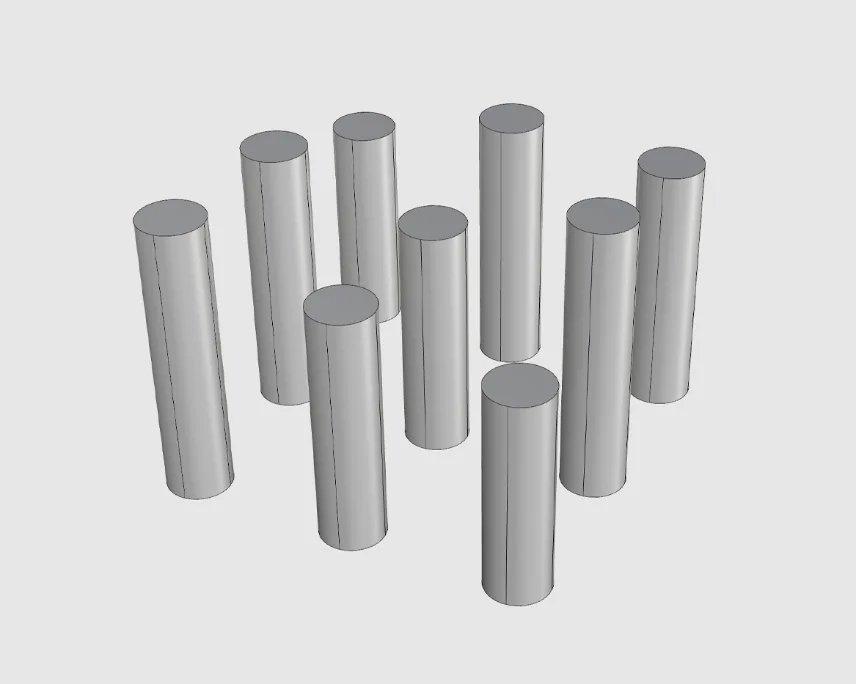
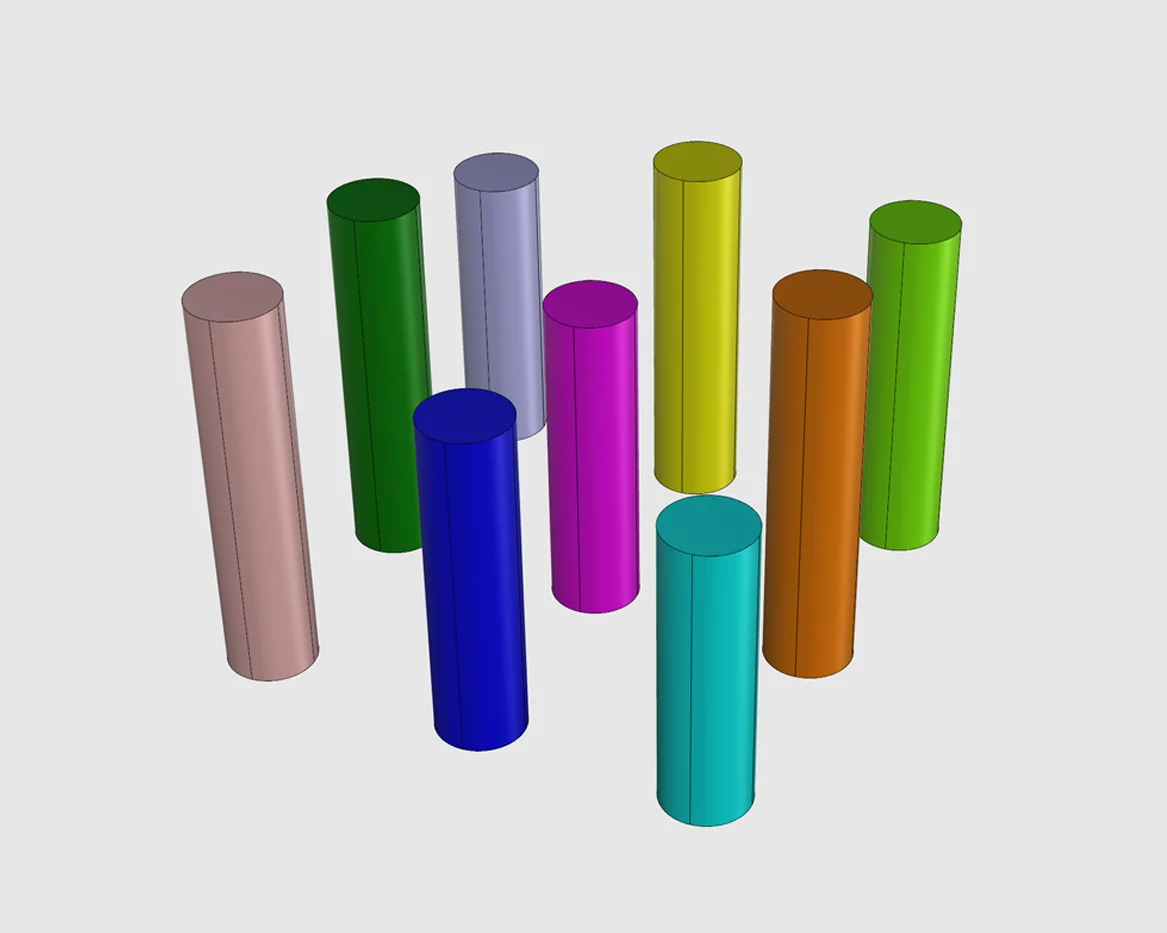
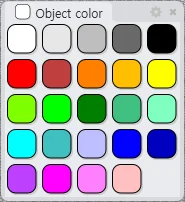
- Besides the default colors, you can create color buttons using command macros if you add buttons to the toolbar.
- Colors can be specified by name or RGB values.
- Using color names: Use Korean or English. If the name has a space, delete it or use quotation marks "".
Examples- ObjectColor Pause 빨강 / ObjectColor Pause Red
- ObjectColor Pause LightGrey / ObjectColor Pause “Light Grey”
- Using RGB: Enter colors as R, G, B. Use quotation marks "" if there are spaces.
Examples- ObjectColor Pause 255,0,0 / ObjectColor Pause "255, 0, 0"
- Using color names: Use Korean or English. If the name has a space, delete it or use quotation marks "".
 ObjectColorFromLayer - Changes the object color to the layer color.
ObjectColorFromLayer
 ObjectColorFromLayer : Changes the object color to the layer color.
- Run ObjectColorFromLayer
- Select objects.
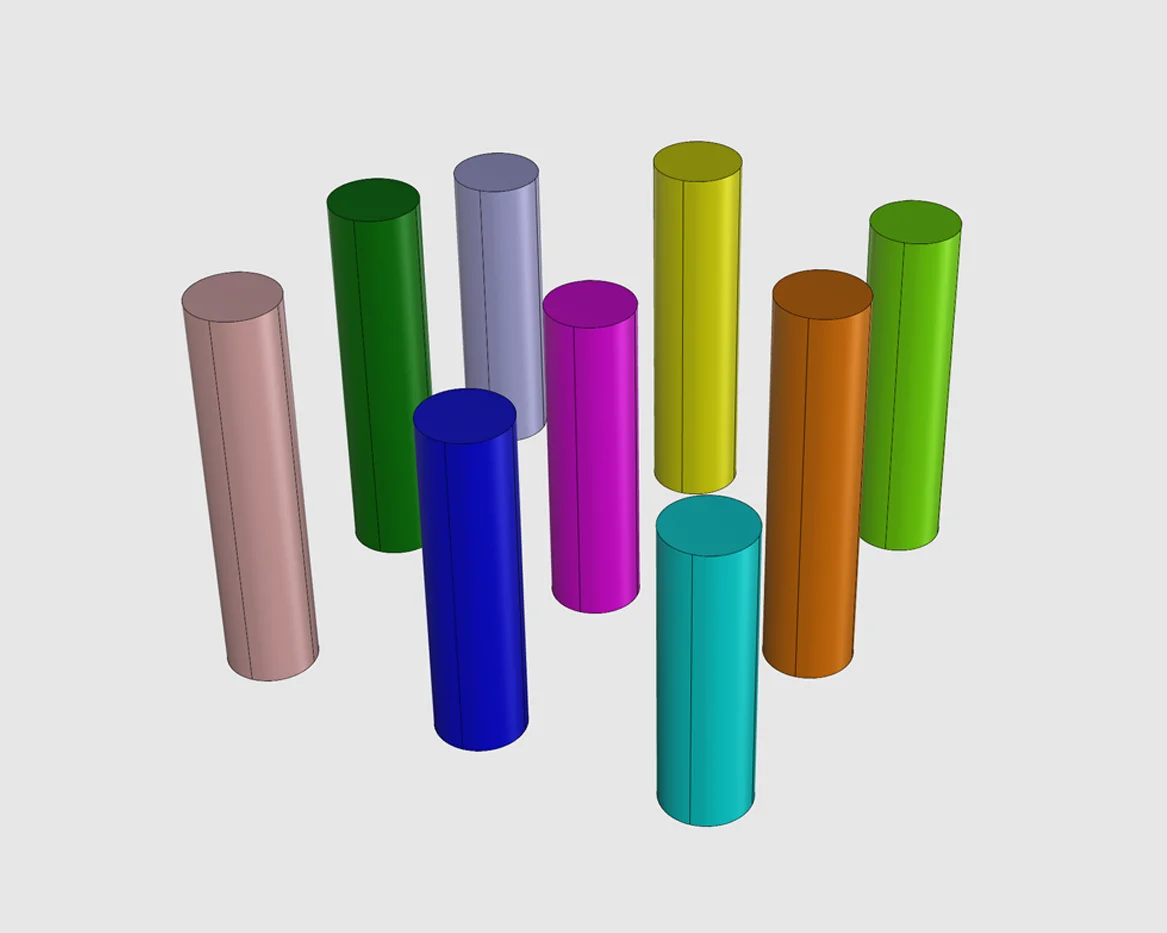
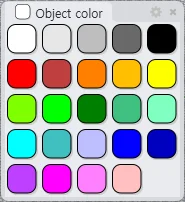
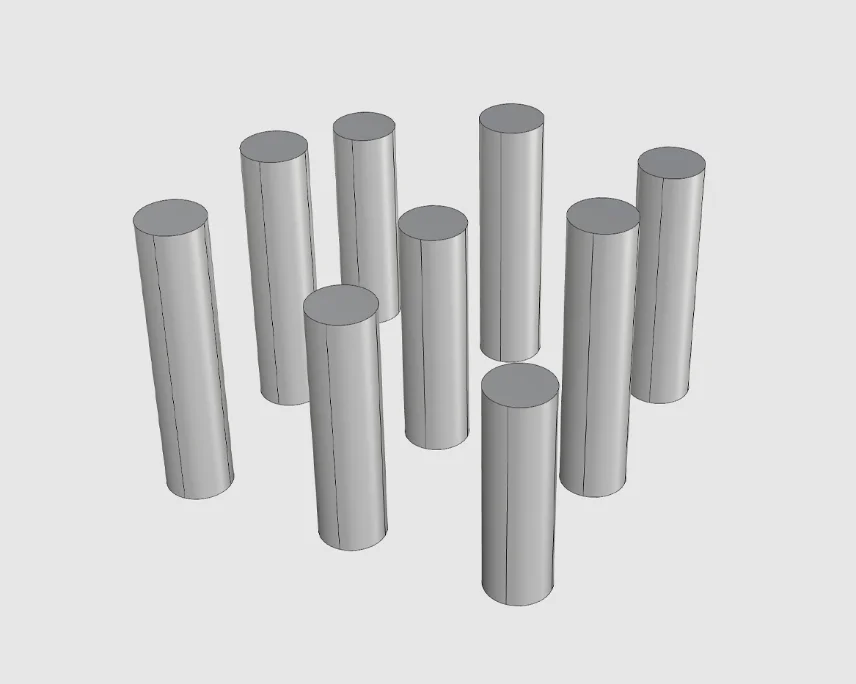
- Added to the right-click menu for white and black.
- The display color is set to the color specified for the layer.
 ObjectColor - Changes the object display color.
RandomizeLayersMaterialColor
 RandomizeLayersMaterialColor : Randomly moves, rotates, scales, or changes the color of multiple objects.
- Run RandomizeLayersMaterialColor
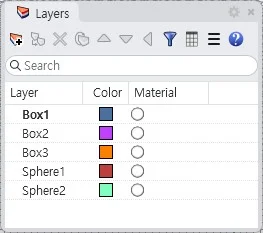
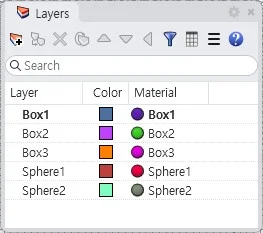
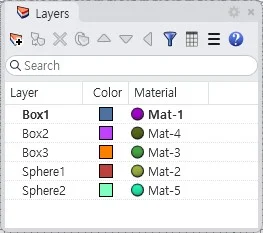
Option
- Color
- Random
Applies random colors as material
-
- LayerDisplayColor
Applies layer colors as material
- LayerDisplayColor
- Names
- Layer
Applies layer names
-
- Number
Applies names in numerical order (e.g., Mat-0, 1, 2, 3, 4...)
- Number
- Reduces the hassle of re-assigning or adjusting materials for each individual object in rendering programs, significantly shortening visualization time and simplifying material management.
 SubLayersByGroup - Creates layers by dividing selected objects into groups.
 ObjColor2MatColor– Creates a material with the same display color; if the display standard is by layer, creates a layer material.
 ObjColorAsMatColor - Applies the material color as the display color.
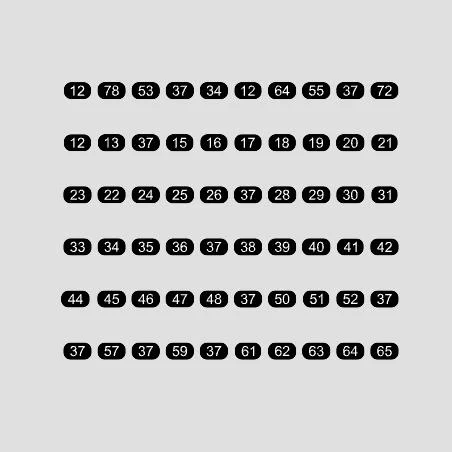
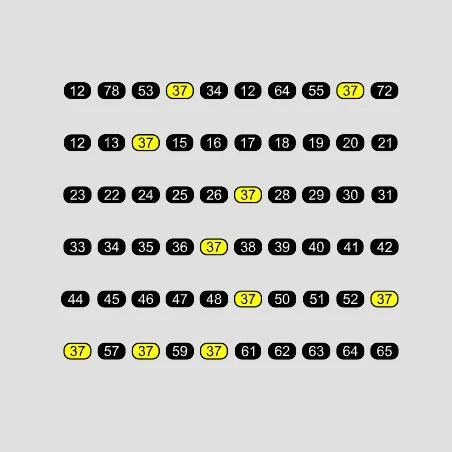
SelSameDots
 SelSameDots : Finds identical text within the content of selected Dots.
- Run SelSameDots.
- Select the Dot to search for.
 SelDotsByContent – Finds similar or exact matching content within the selected Dots.
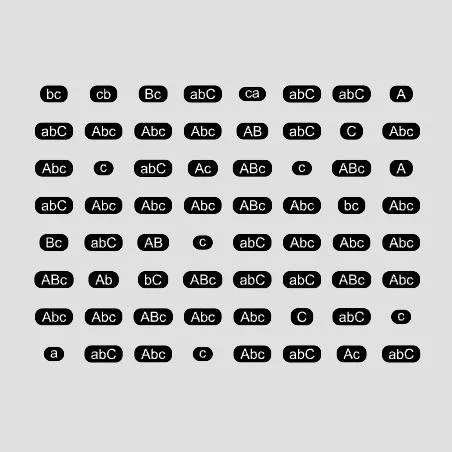
SelDotsByContent
 SelDotsByContent : Finds similar or exact matching content within the selected Dots.
- Run SelDotsByContent.
- Enter English text in the Content field.
- Set options and confirm.
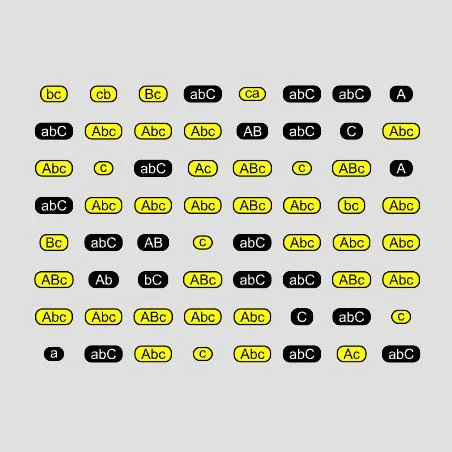
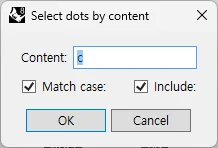
Option
- Match case
Selects Dots distinguishing between uppercase and lowercase English letters - Include
Selects Dots with the same English text, regardless of uppercase or lowercase
- If both 'Match case' and 'Include' are checked simultaneously, Dots containing the English text(case-insensitive) will be selected.
 SelSameDots – Finds identical text within the content of selected Dots.